
Best Whiteboard App - by EndlessAI
Optimized for teaching and many subjects like math and physics.
Smooth writing. Clean interface. Simple and powerful.
Launch screen / App overview
News
Top 10 Editors’ Picks
1. Main Canvas Overview
The main canvas is the core of Whiteboard. The image below shows each area with numbered labels and matching explanations.
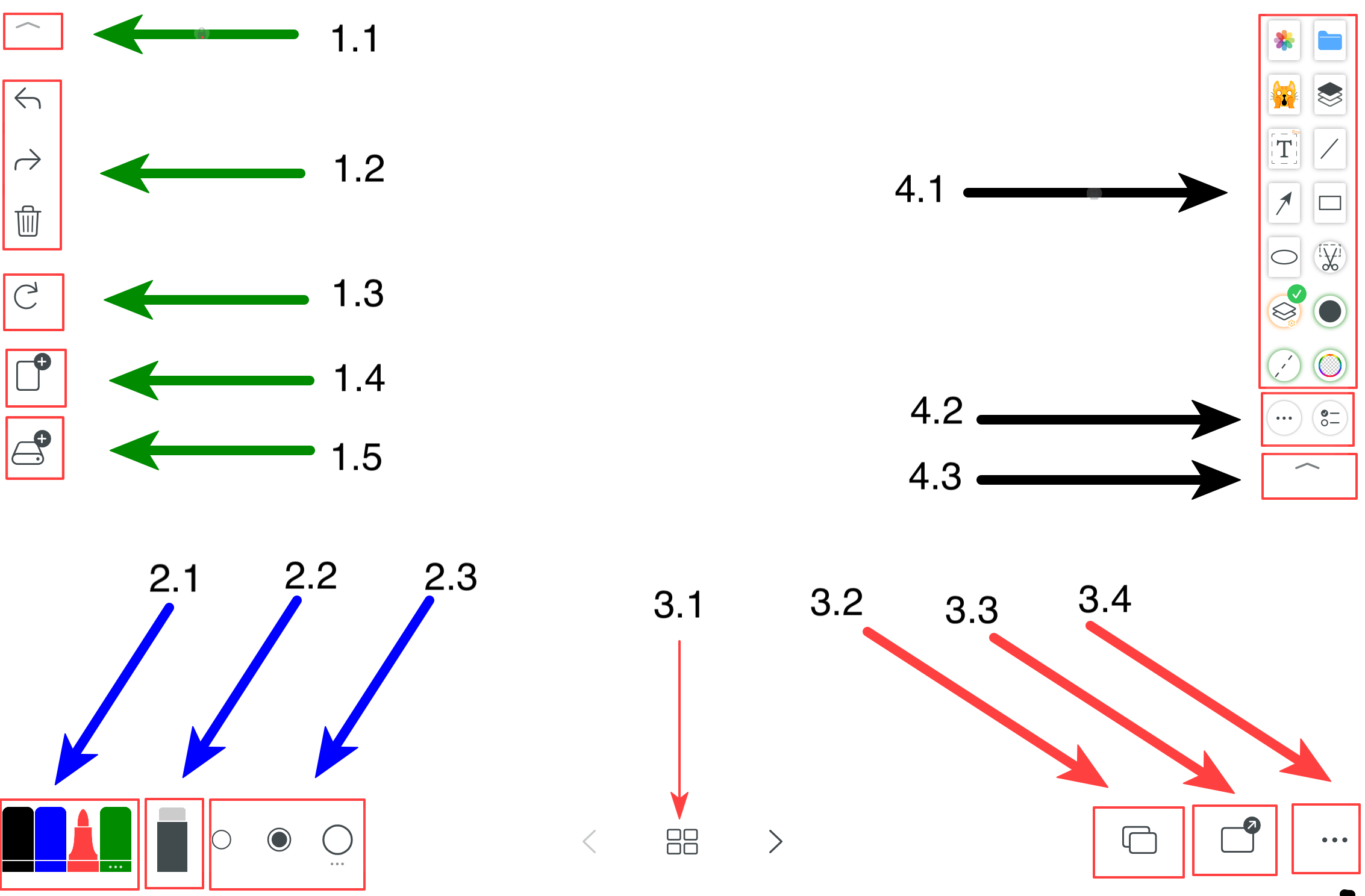
- 1.1 Focus mode toggle
- 1.2 Undo / Redo / Clear
- 1.3 Reset
- 1.4 New page
- 1.5 New file & history
- 2.1 Pen colors (the last item opens more colors and pen types)
- 2.2 Eraser
- 2.3 Stroke size (the last item opens more sizes)
- 3.1 Page switching in finite canvas mode
- 3.2 Background templates: colors, grids, paper formats, white/black/green boards, images as background
- 3.3 Export: single page export or multi-page PDF export
- 3.4 More: personalization settings
- 4.1 Quick tools panel
- 4.2 Choose more tools & edit quick panel
- 4.3 Show / hide quick panel
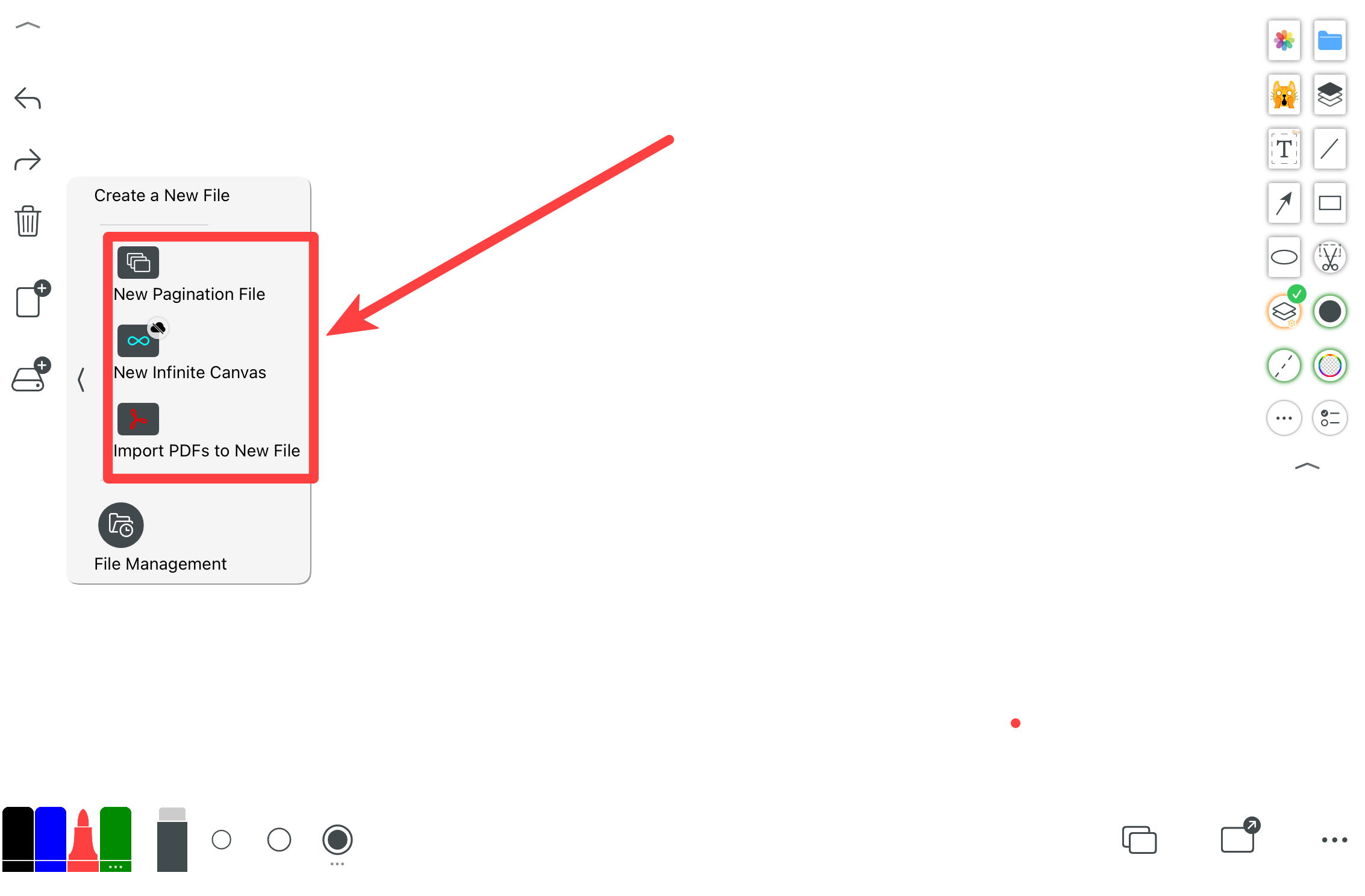
Create different file types. Finite canvas works like a paged document (similar to editing a PDF). Infinite canvas is one unlimited surface. Note: once created, the canvas orientation/size will not change. To switch between landscape/portrait, create a new file in the desired orientation. PDF import is supported.
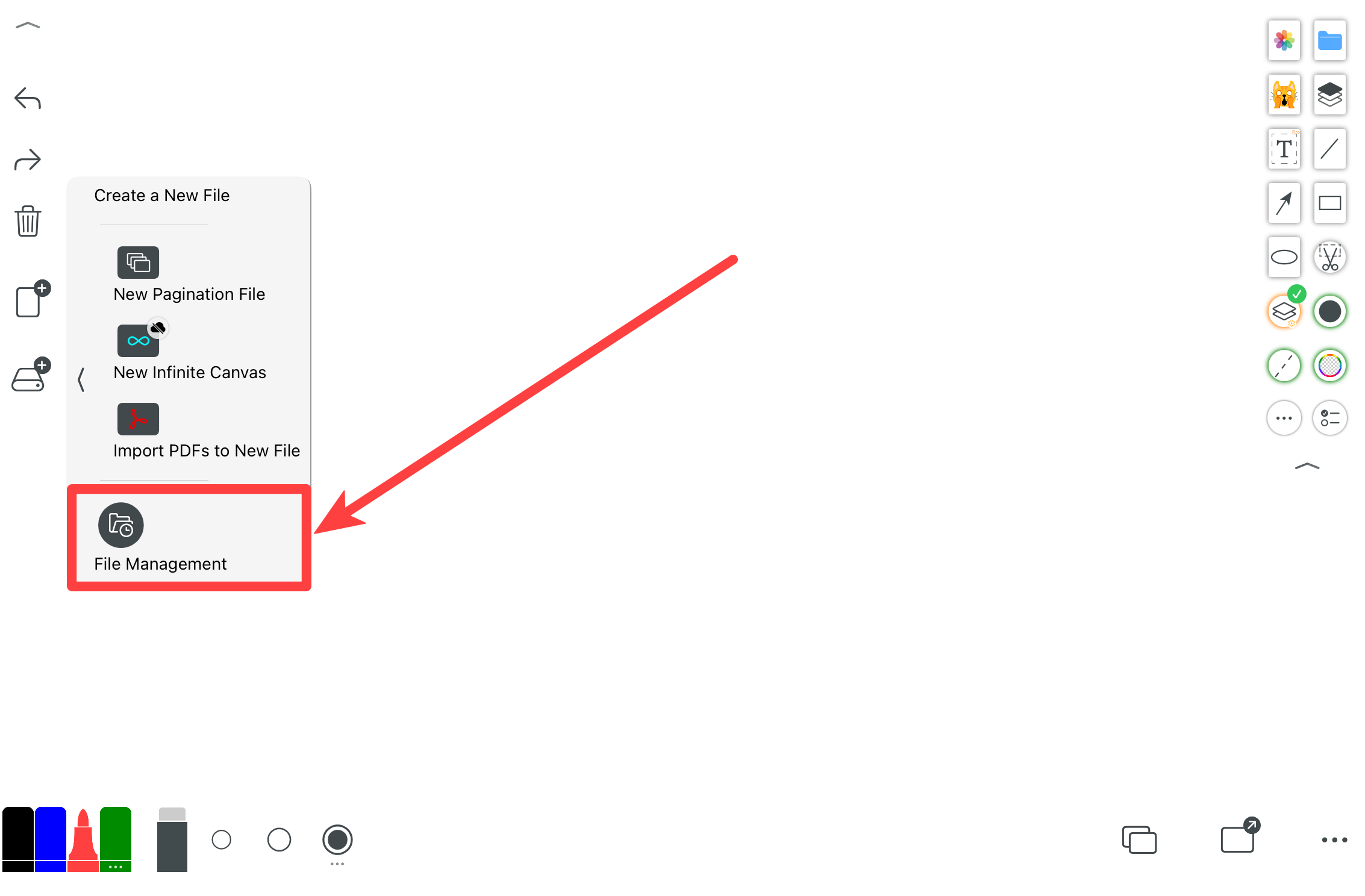
Manage file history. All files are stored locally on your device.
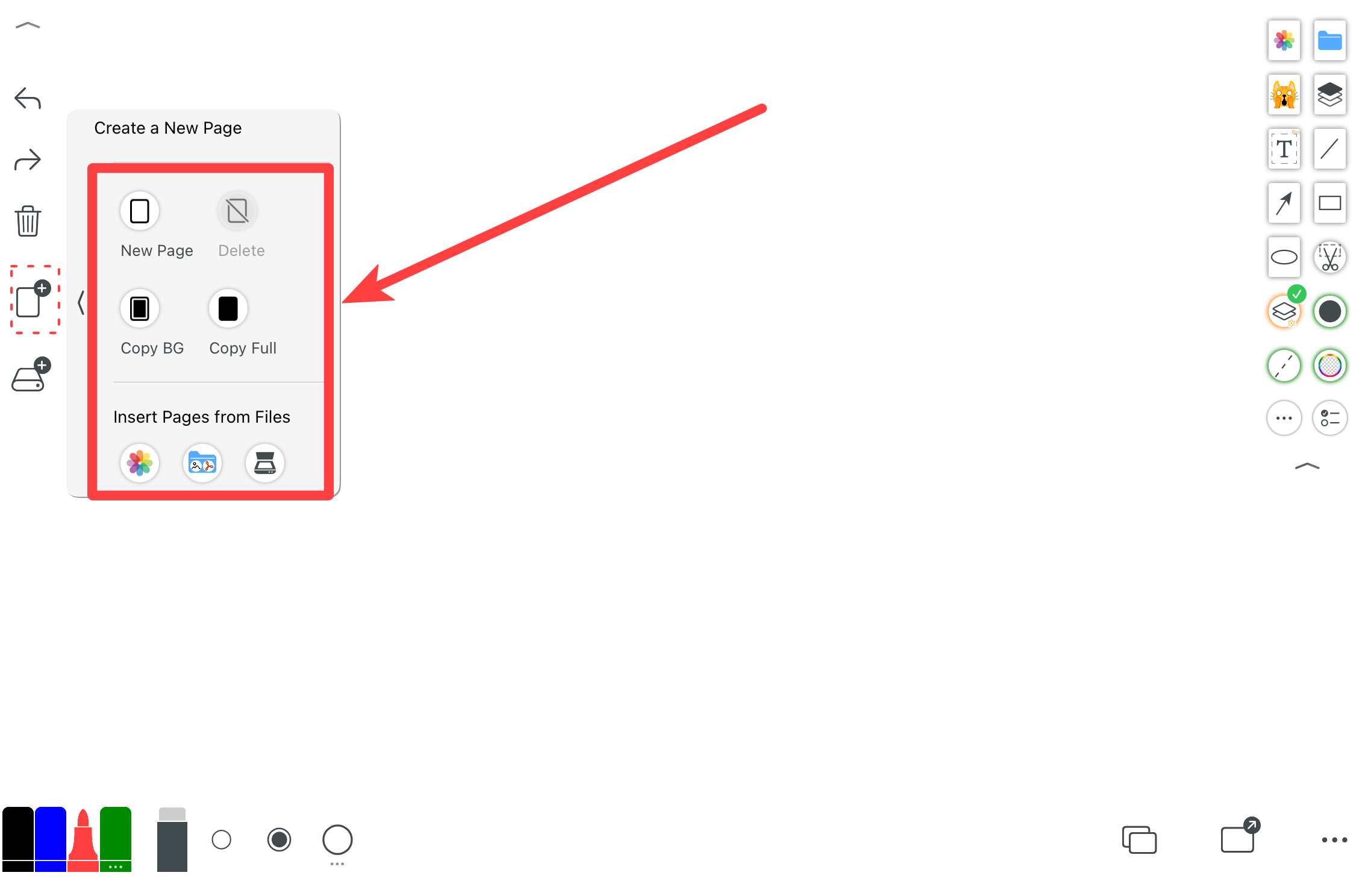
Add a blank page, a page with the previous background, or a fully duplicated page. You can also delete the current page.
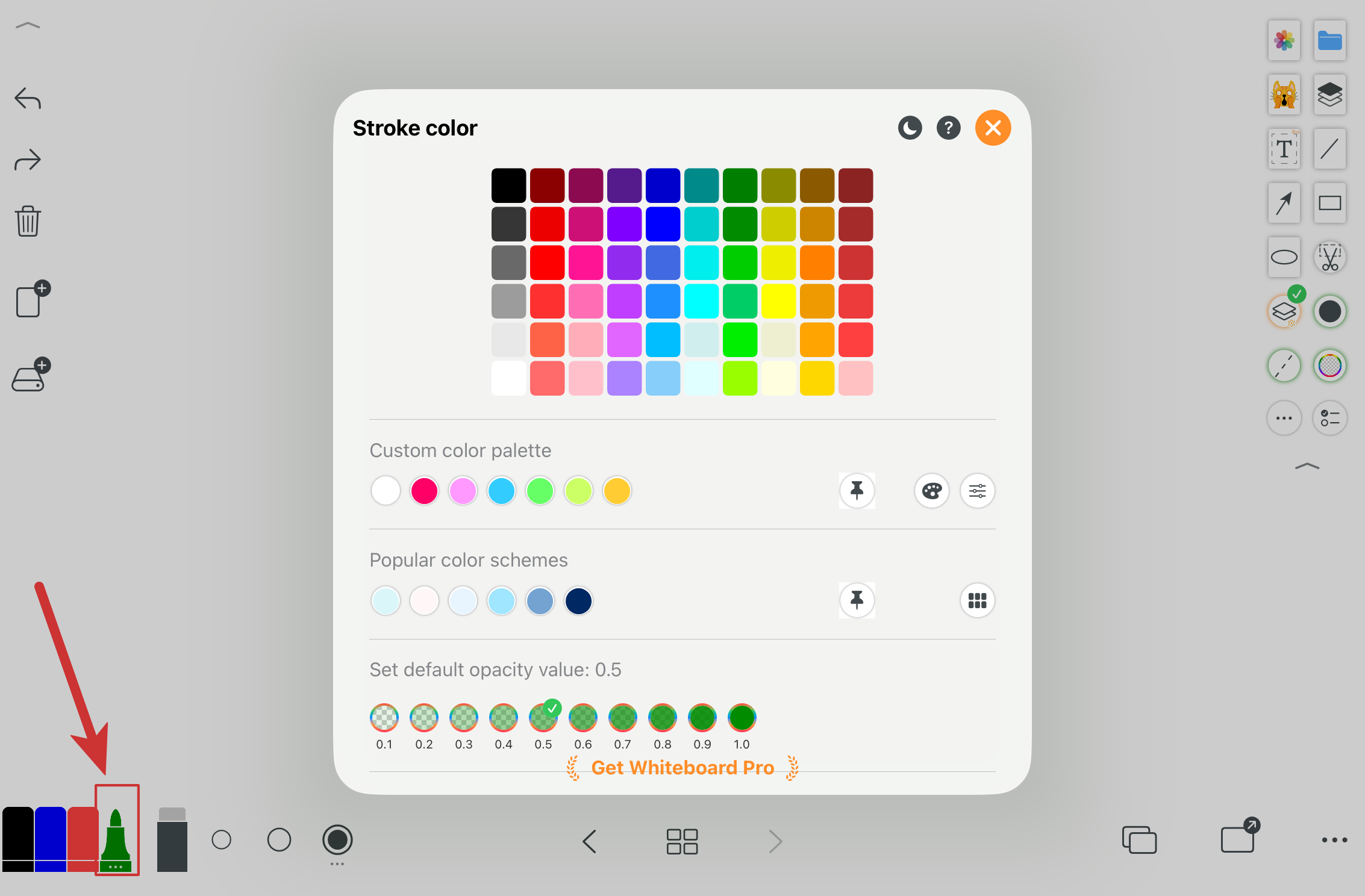
Choose common colors quickly. The last option opens more colors and pen types.
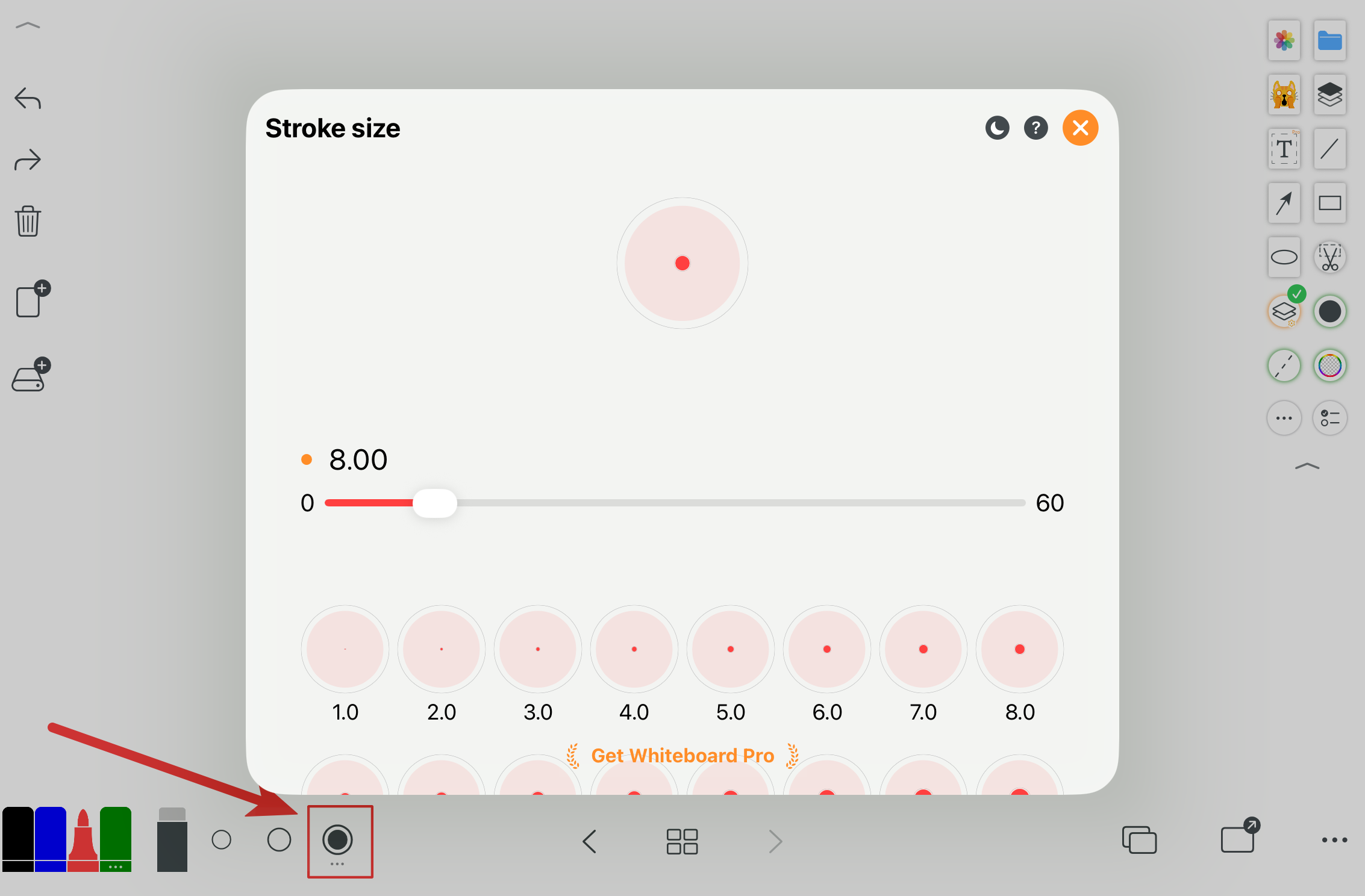
Switch common stroke sizes quickly. The last option opens more sizes.
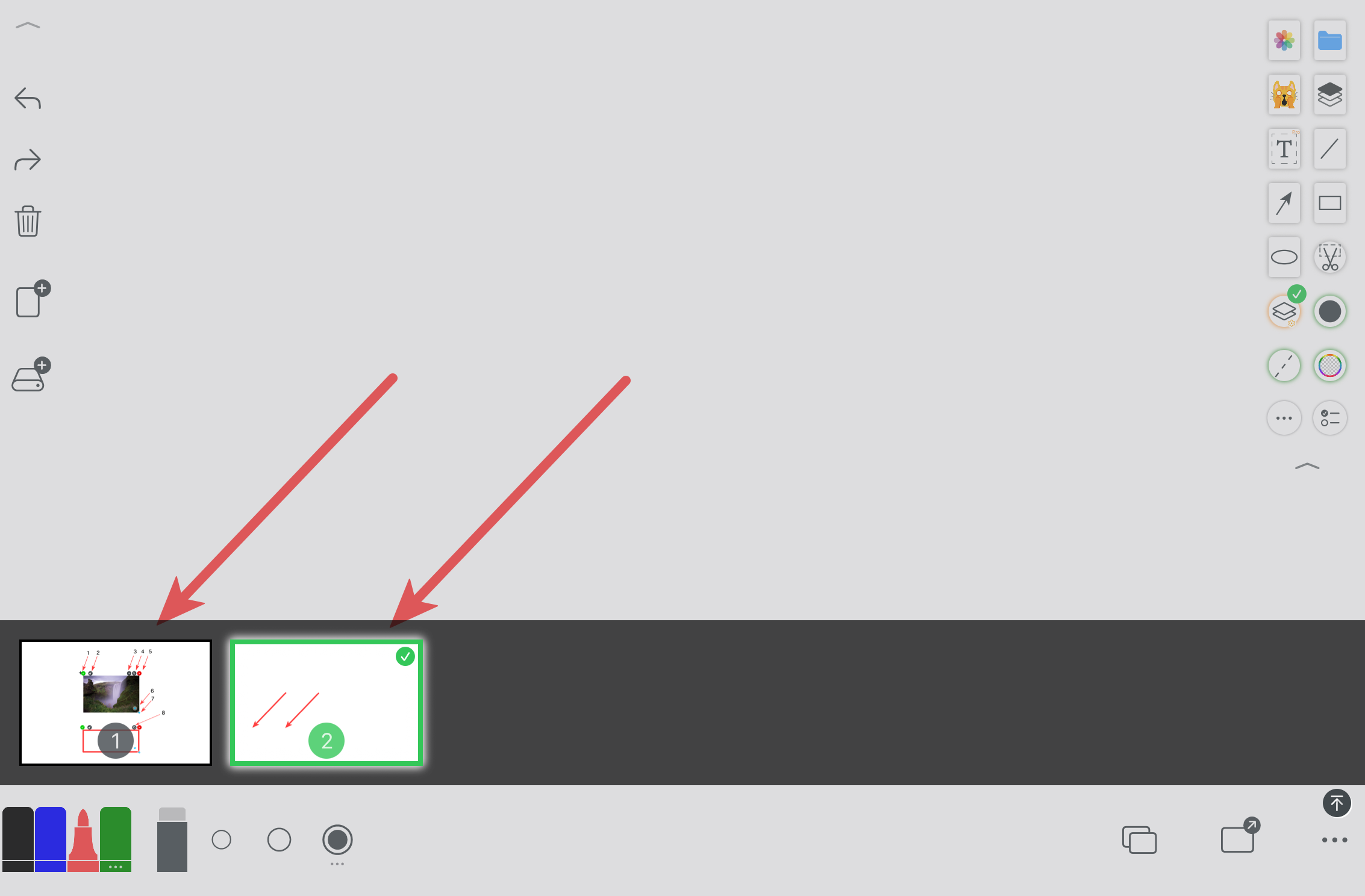
In finite canvas files, switch and manage pages easily.
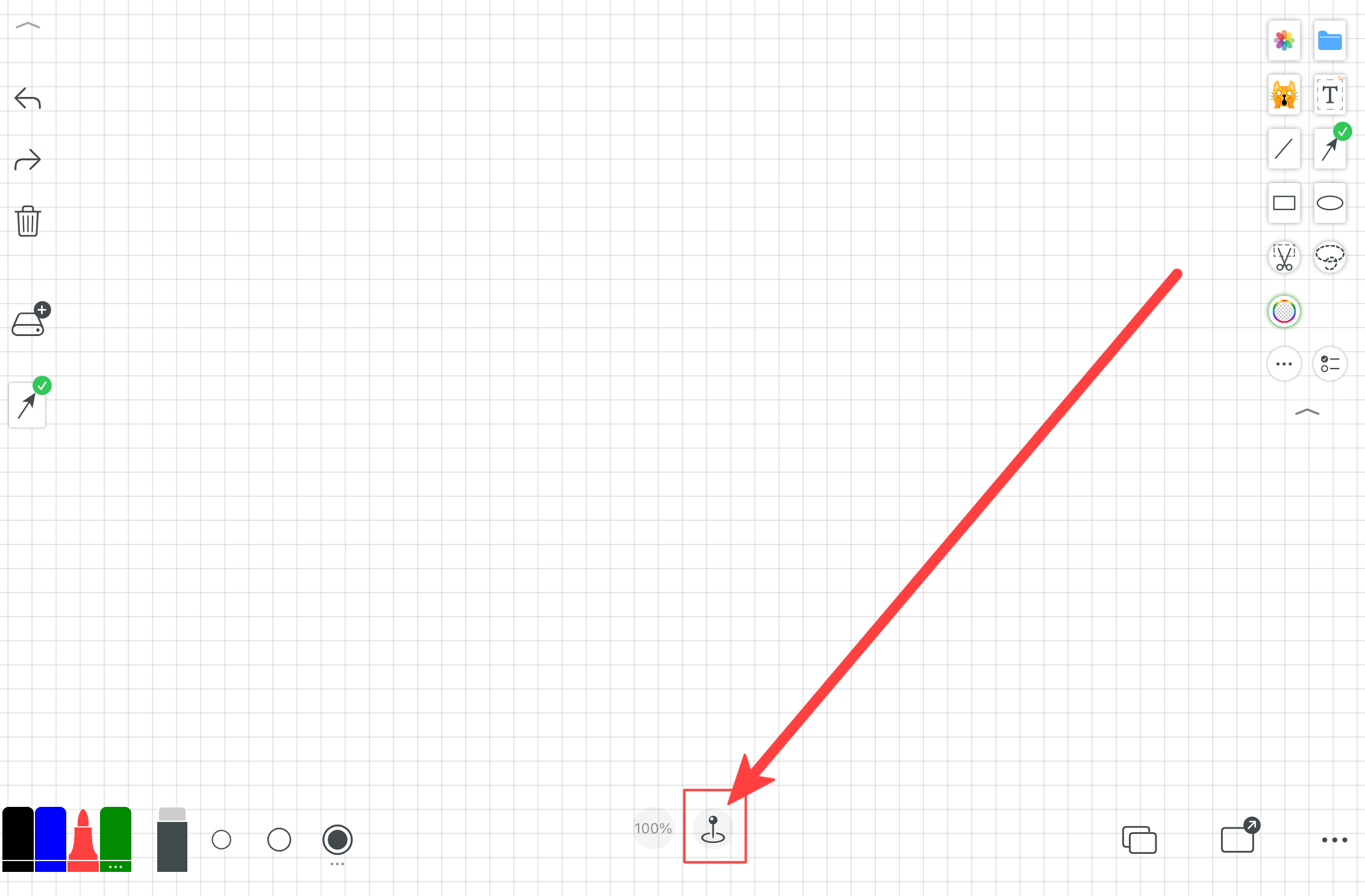
An unlimited canvas for derivations, teaching notes, mind maps, and free layouts.
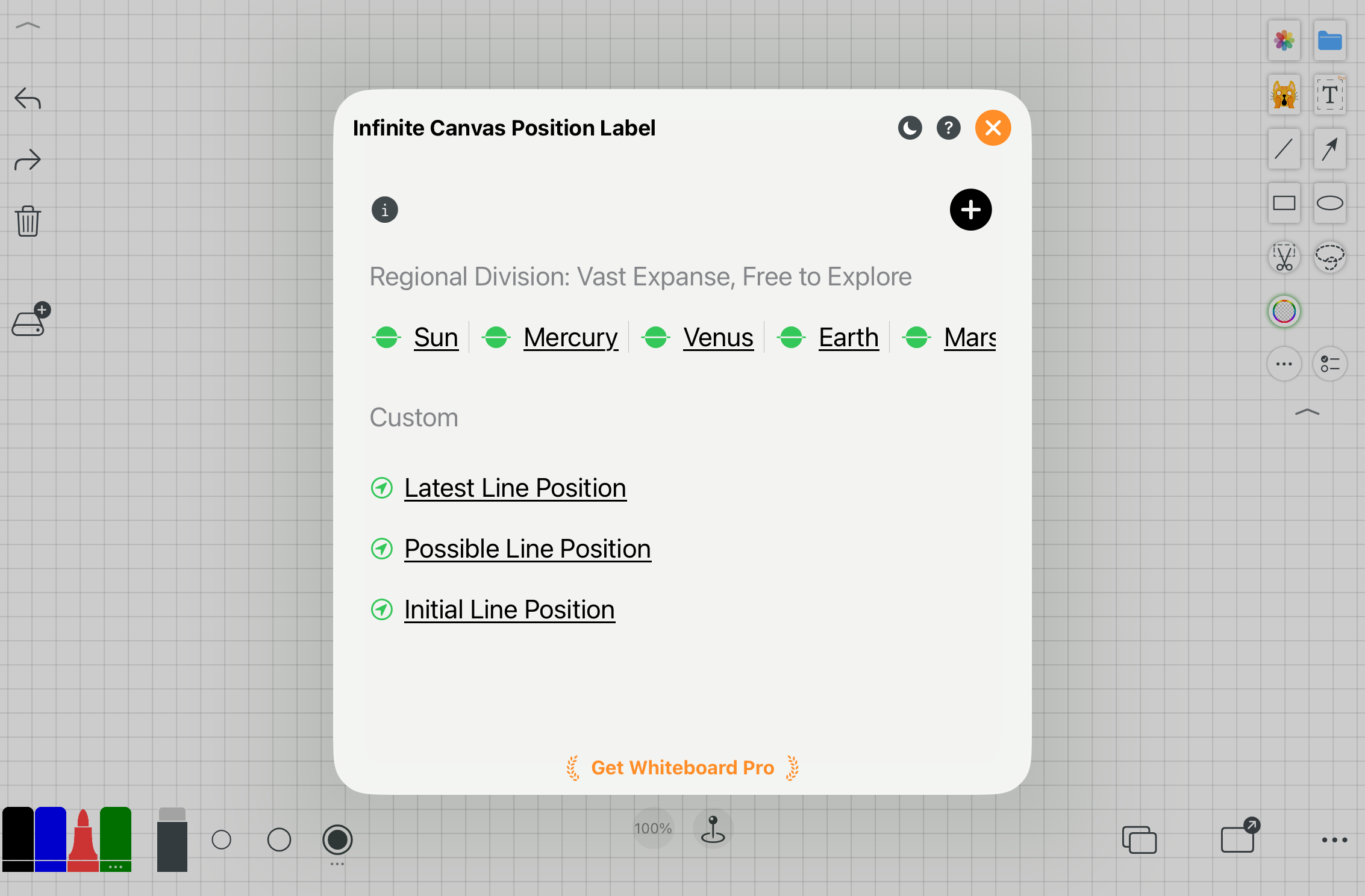
Position labels help you navigate and locate areas on the infinite canvas.
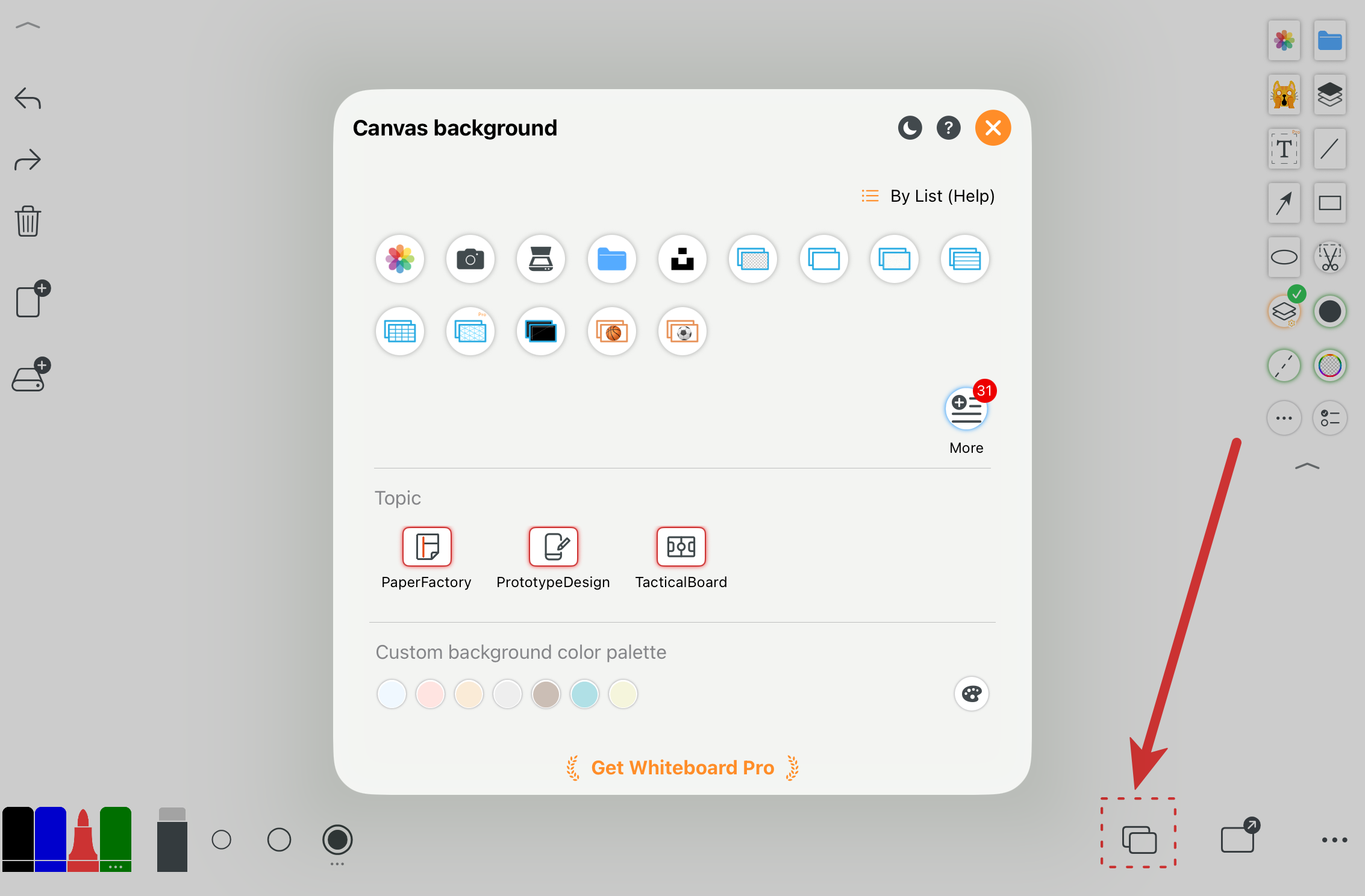
Set colors, grids, paper formats, boards, or images as the canvas background.
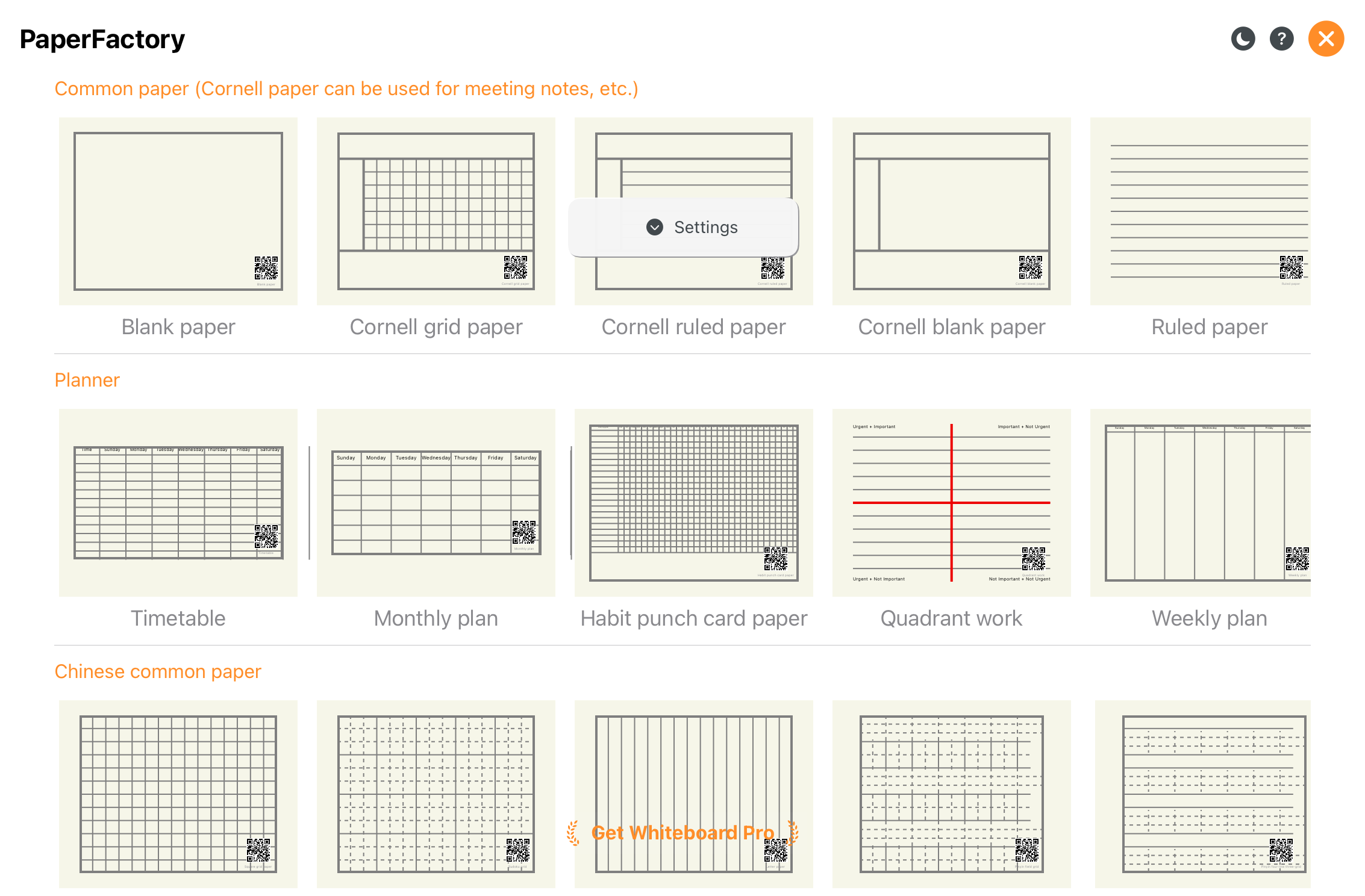
Multiple paper styles and page formats.
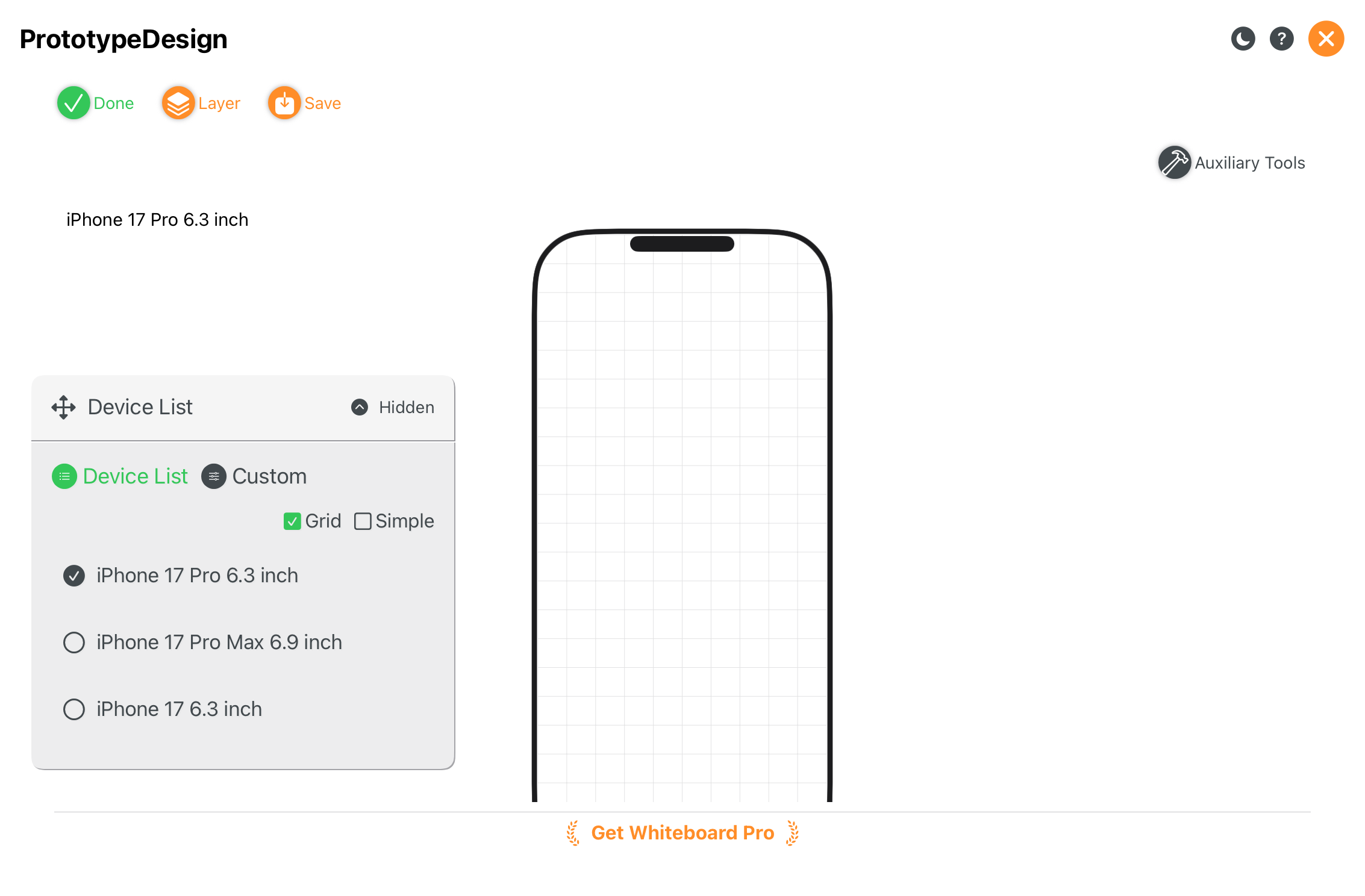
Great for UI drafts and product prototyping.
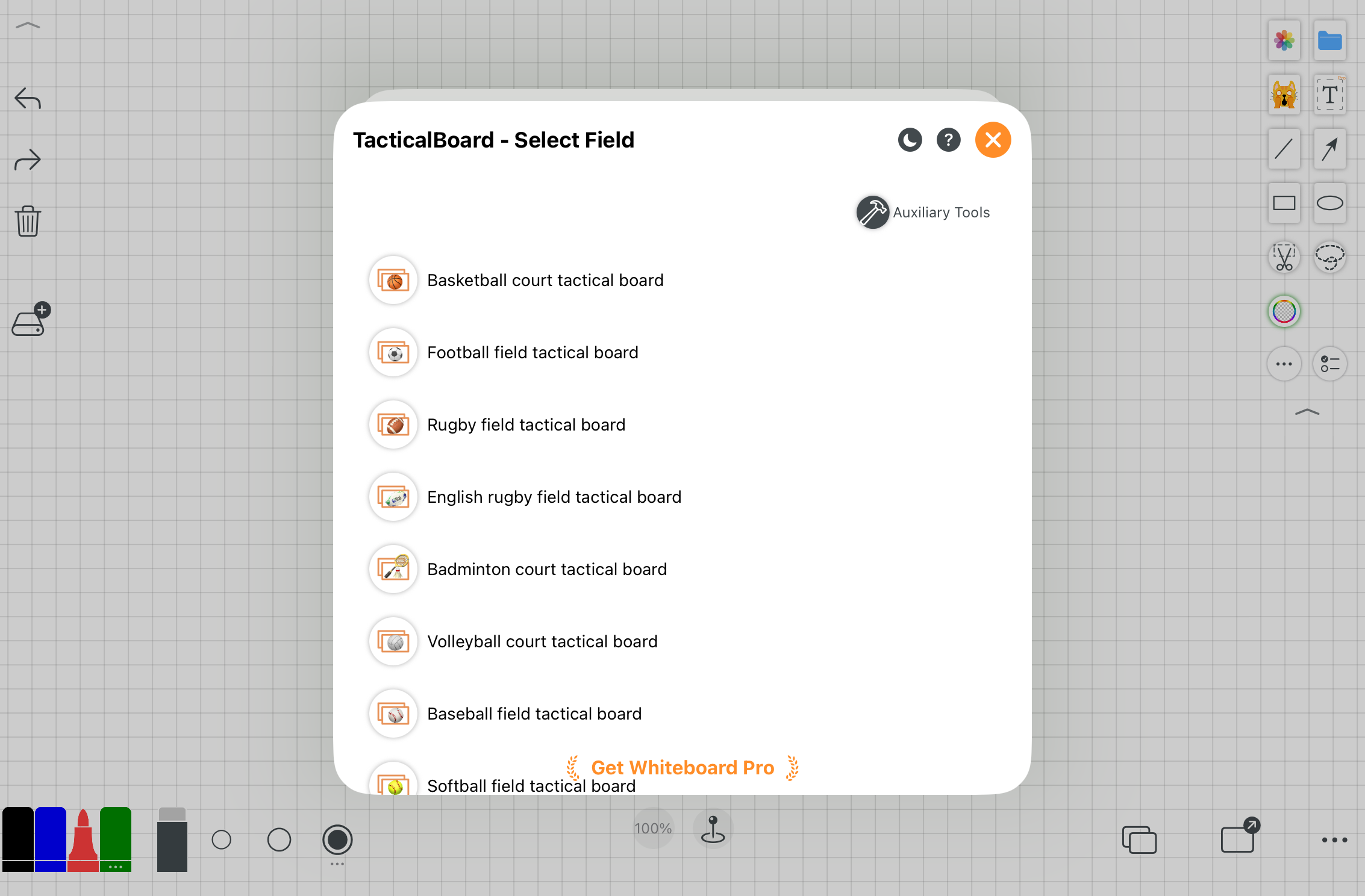
Specially optimized tactical boards for coaching and planning.
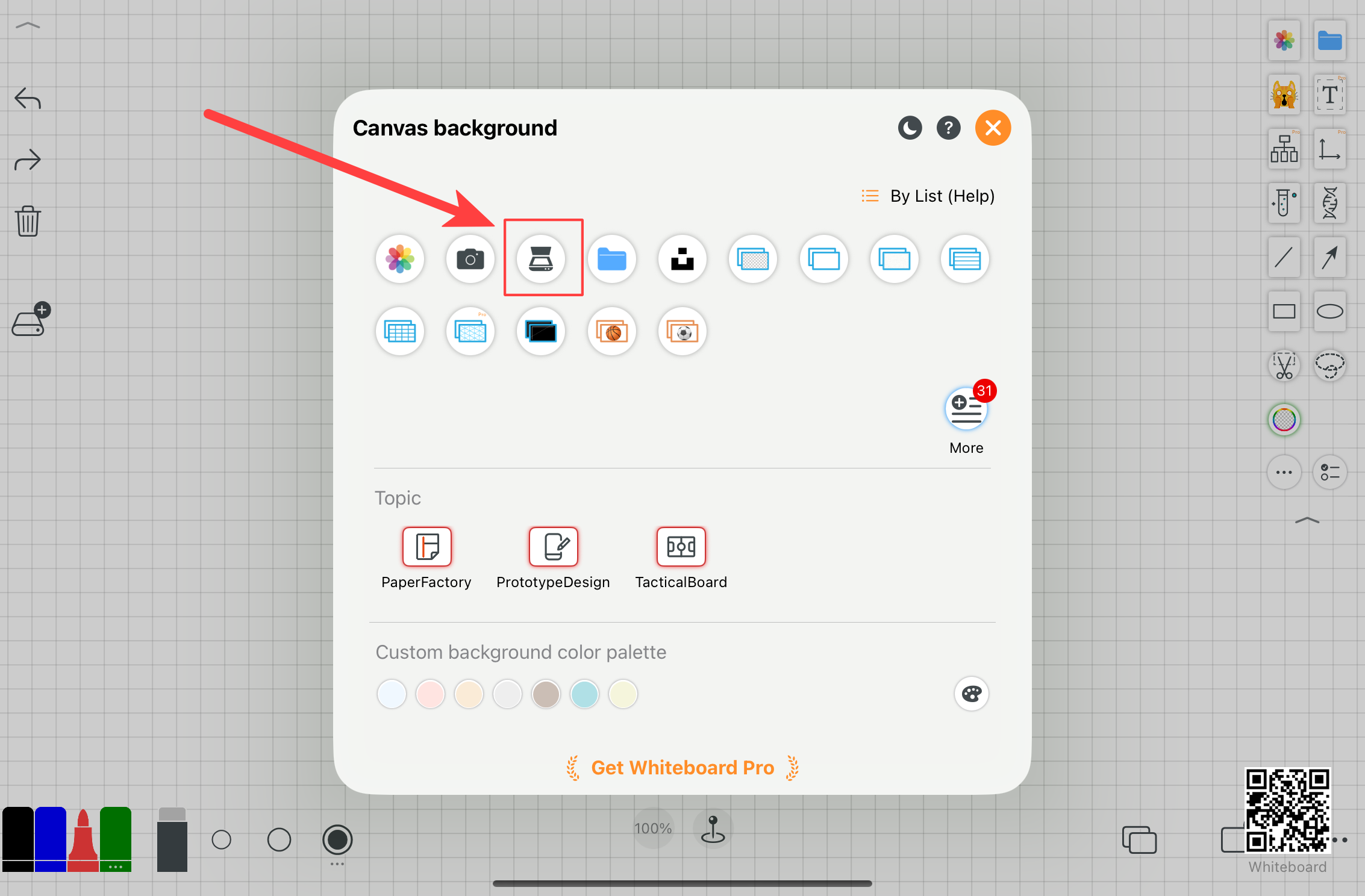
Scan paper documents in batch and export them as a single PDF.
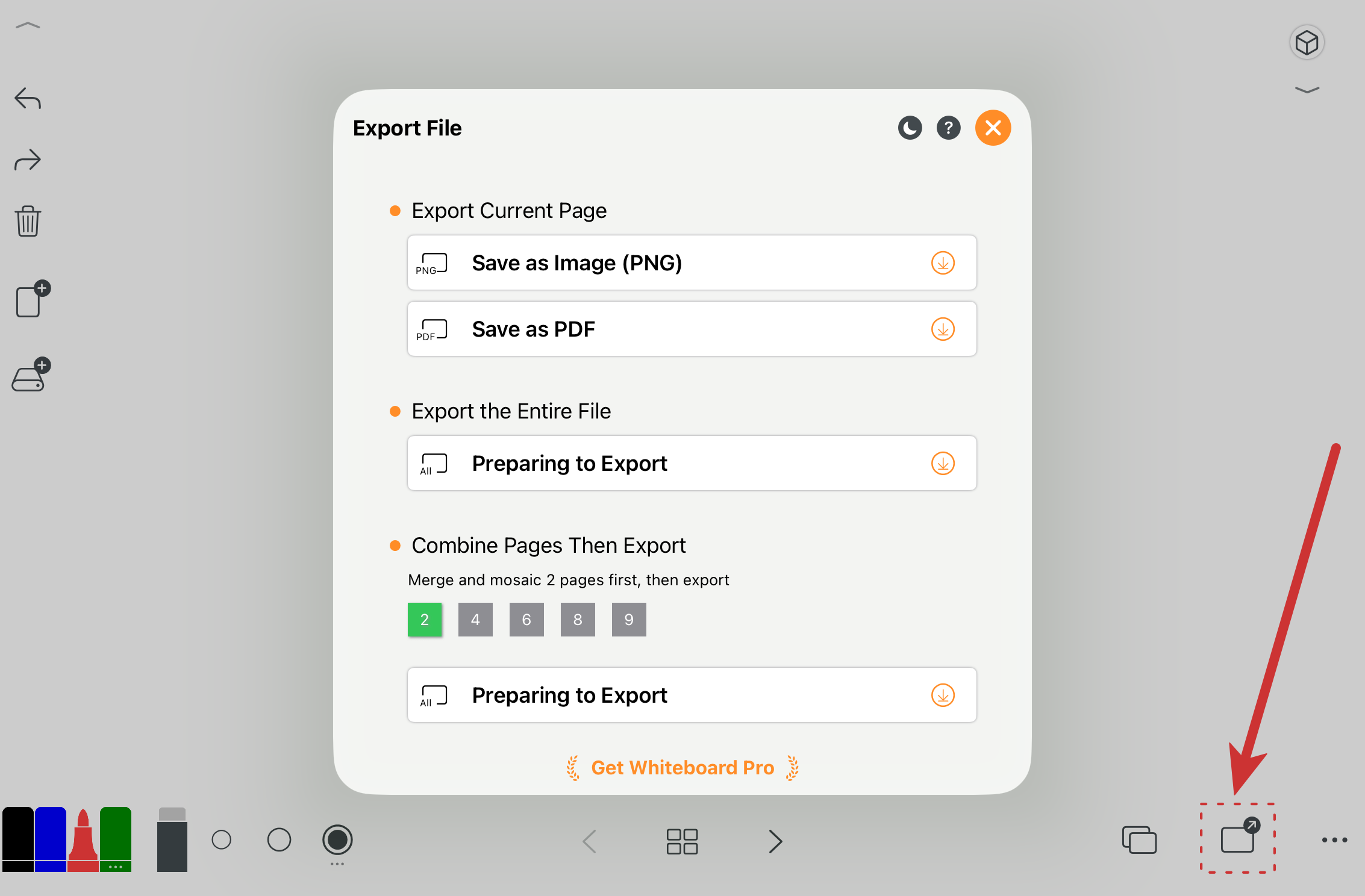
Export a single page or the whole file as a multi-page PDF.
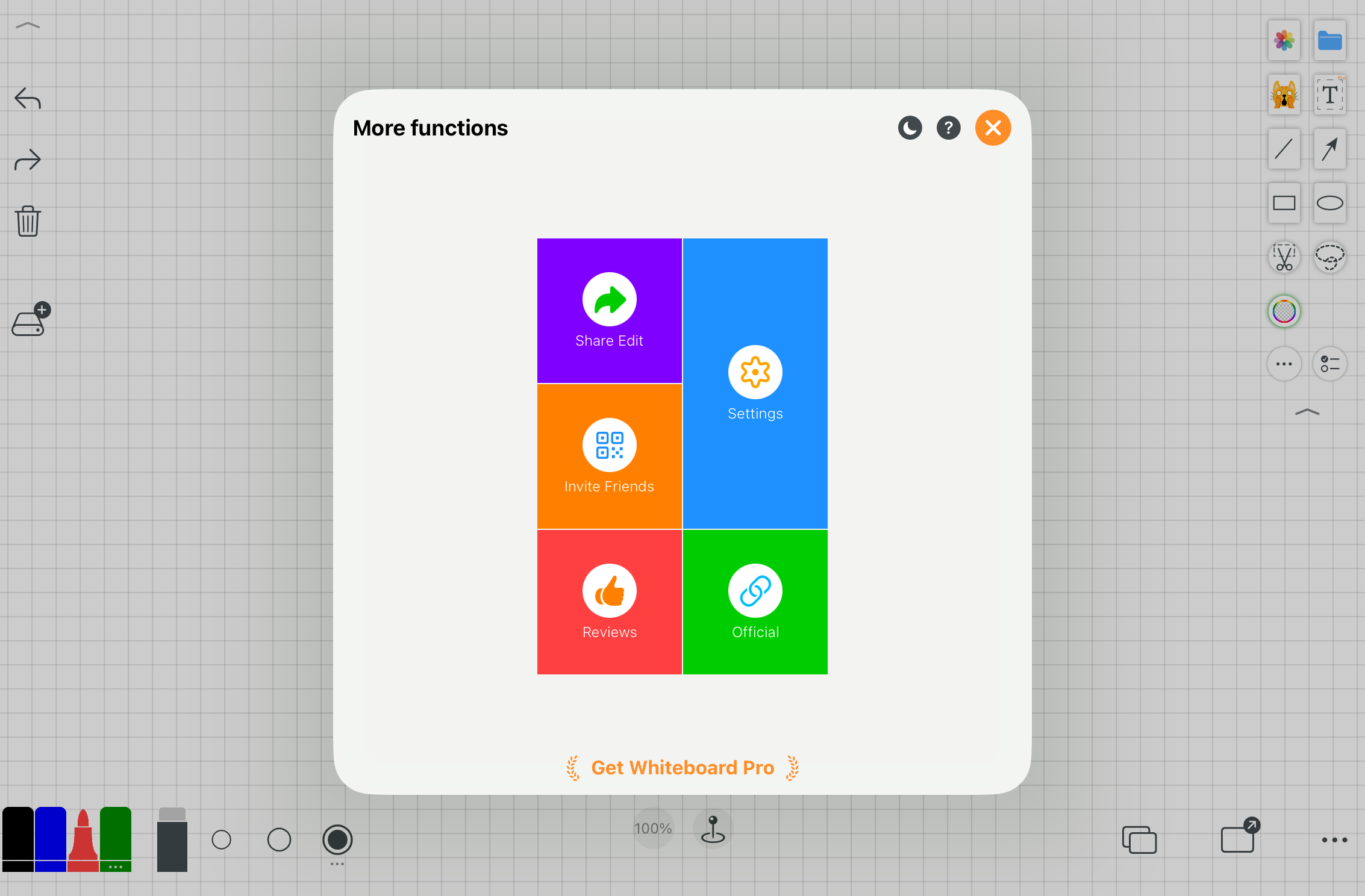
Open personalization and advanced settings.
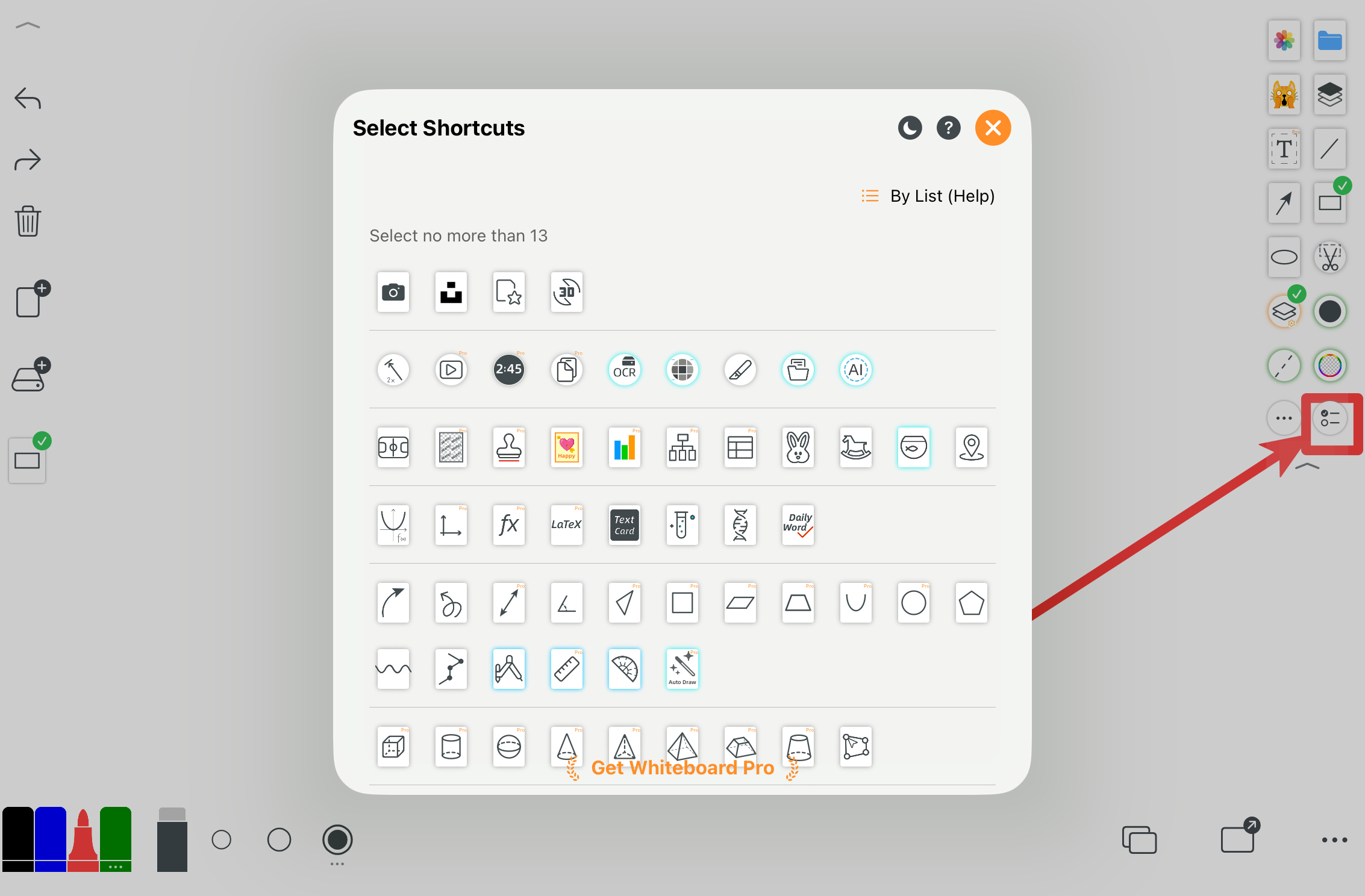
Choose more tools and customize your shortcut panel.
2. Personalization Settings
Different users have different workflows and preferences. Whiteboard provides flexible personalization options.
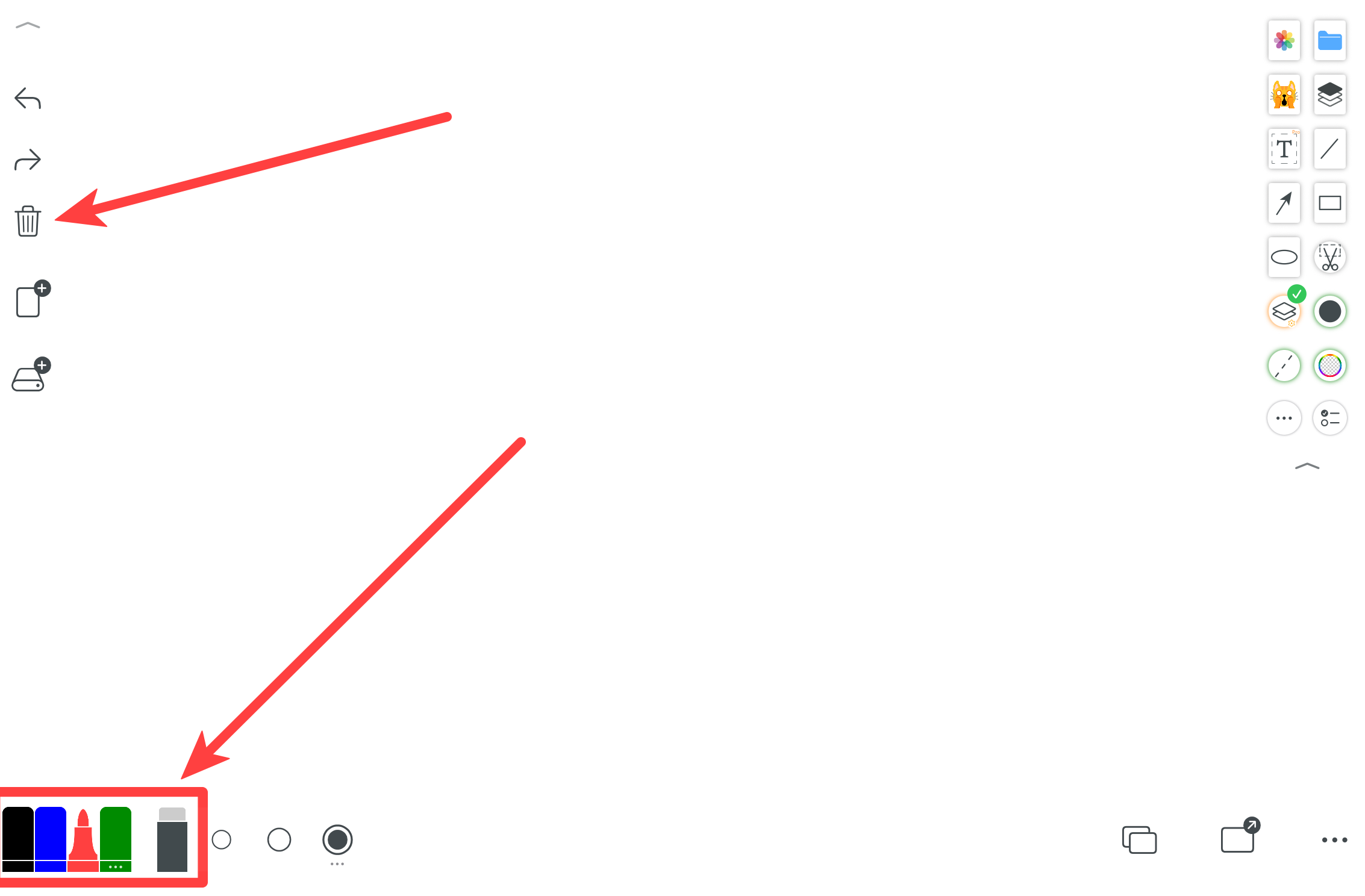
Long-press buttons to open their individual customization panels.
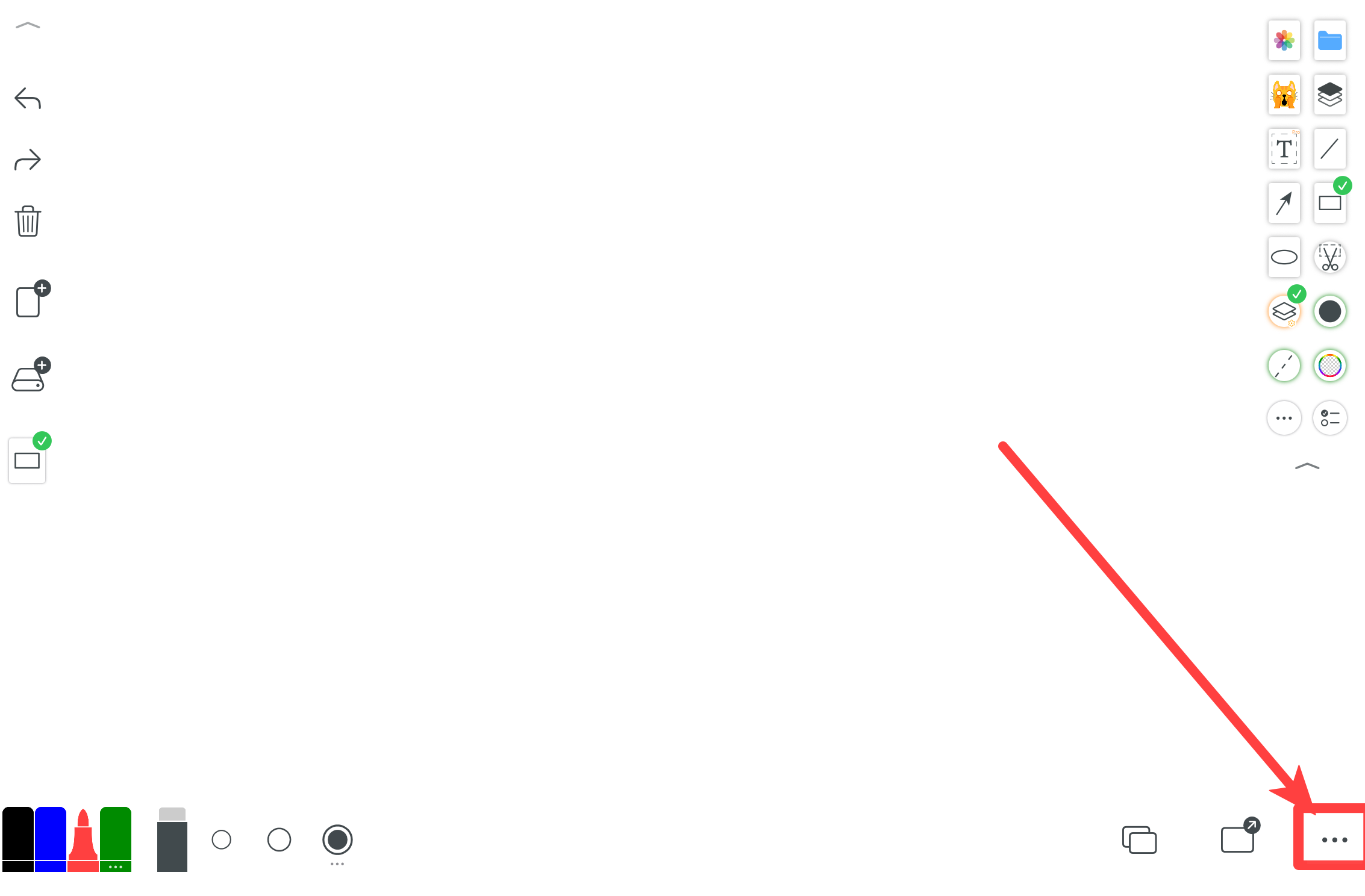
Tap the “More” button to enter settings.
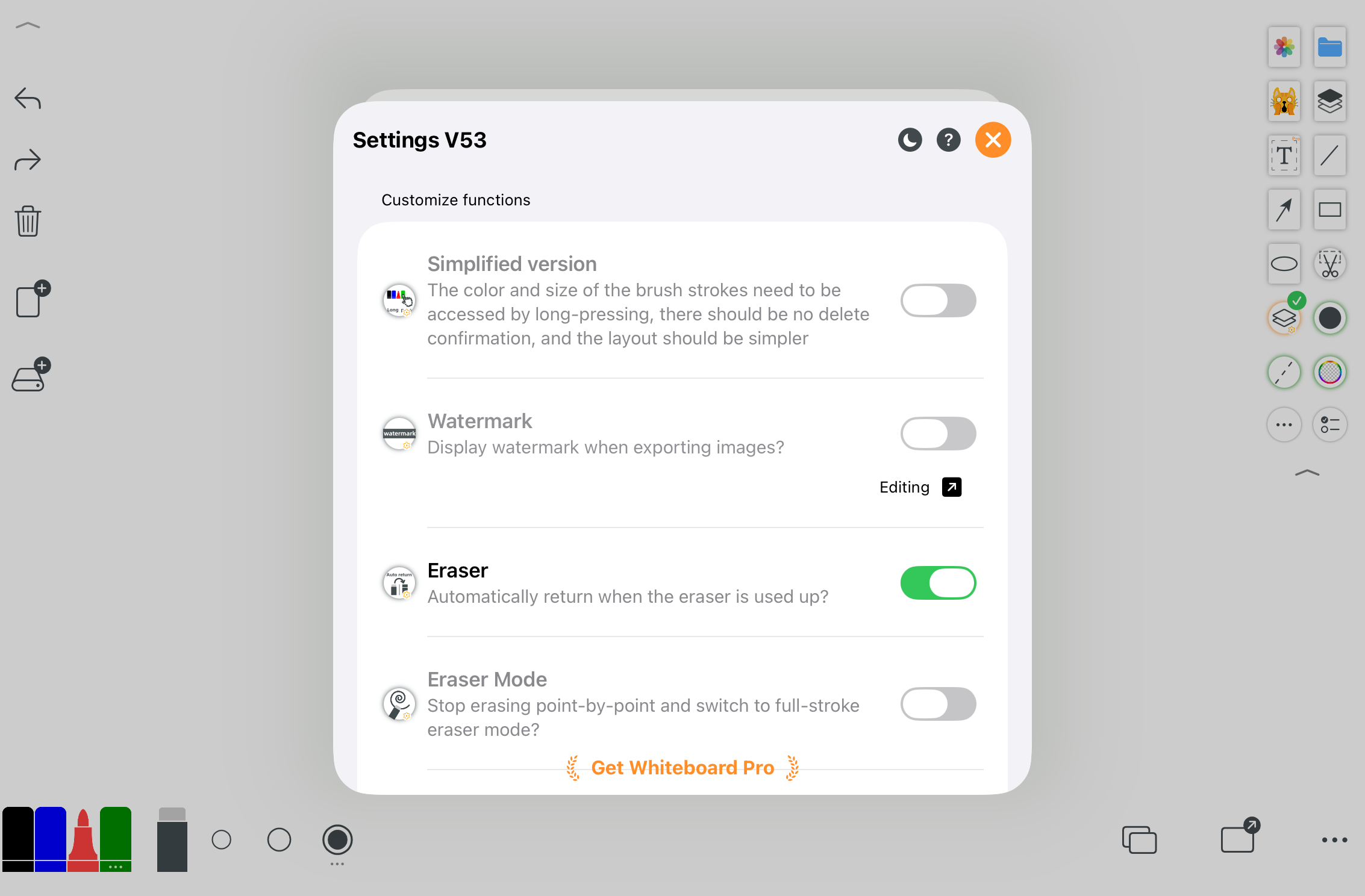
Manage personalization settings in one place.
3. Combined Tools
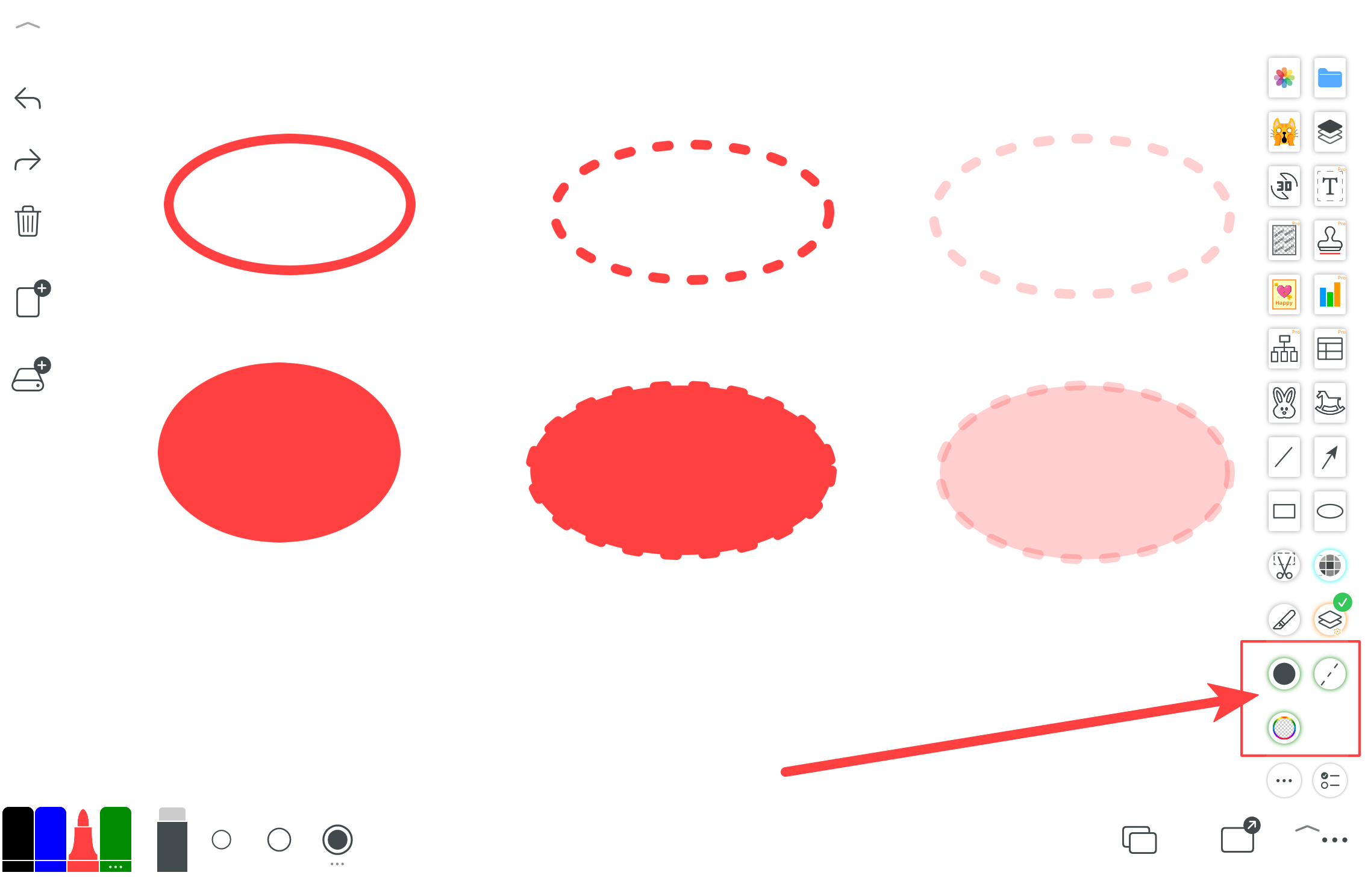
Combine different tools to create solid lines, dashed lines, transparent strokes, filled areas, and closed shapes.
4. New Layer Settings
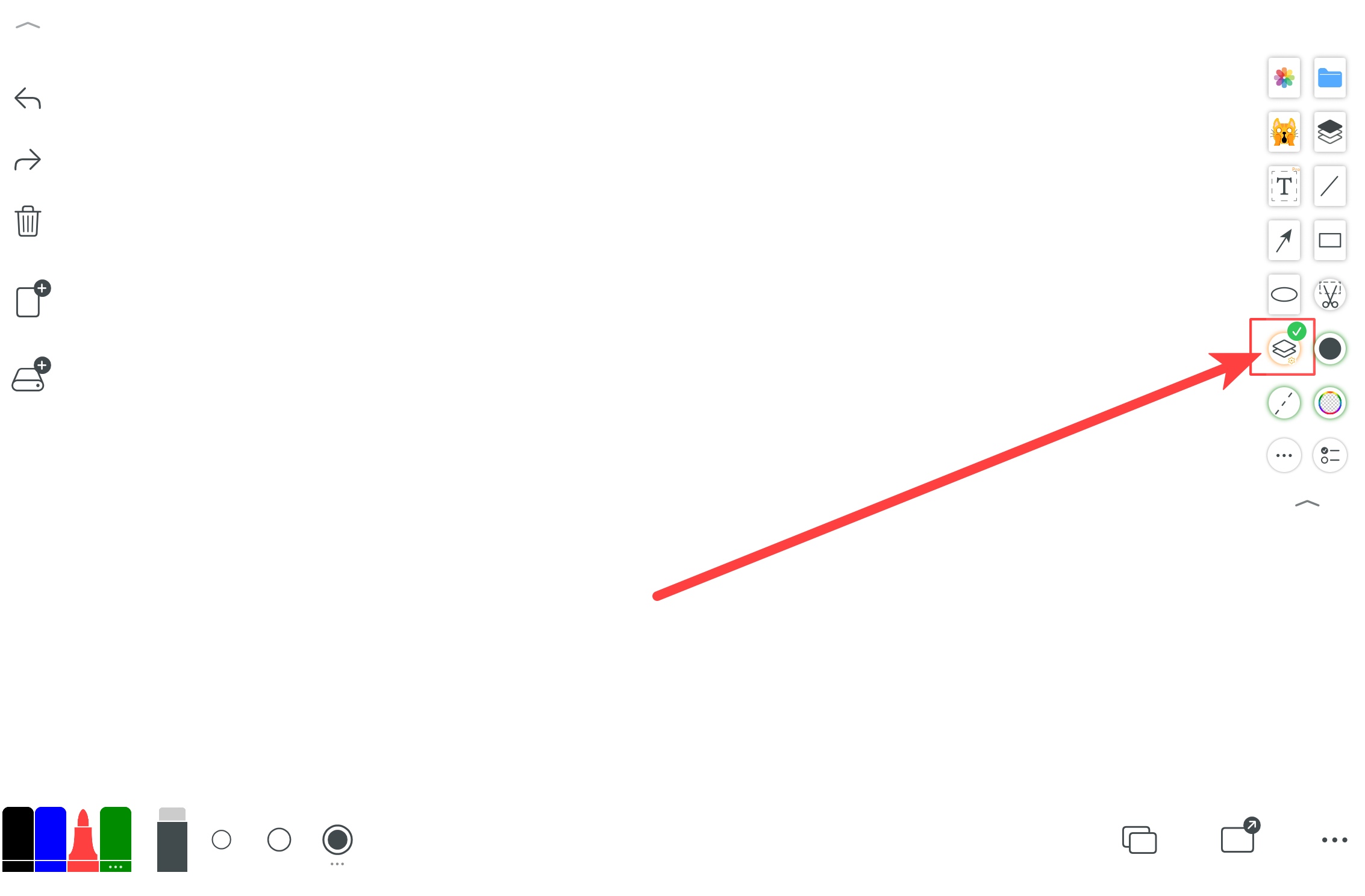
When drawing shapes, if this option is off, the shape is drawn directly on the canvas. If on, the shape becomes a new layer you can move and scale.
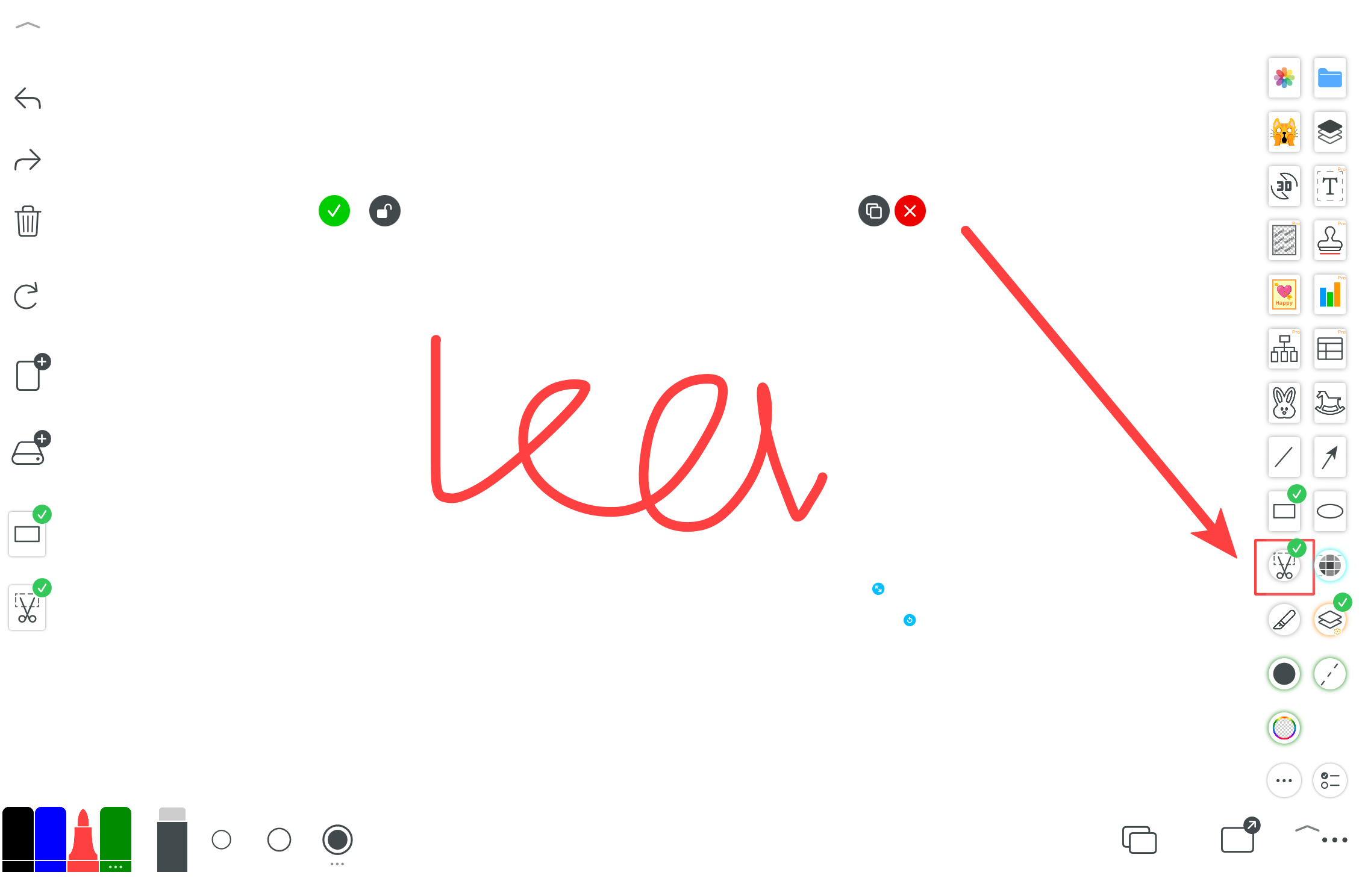
Use scissors to cut the selection into a separate layer.
5. Layer Action Buttons
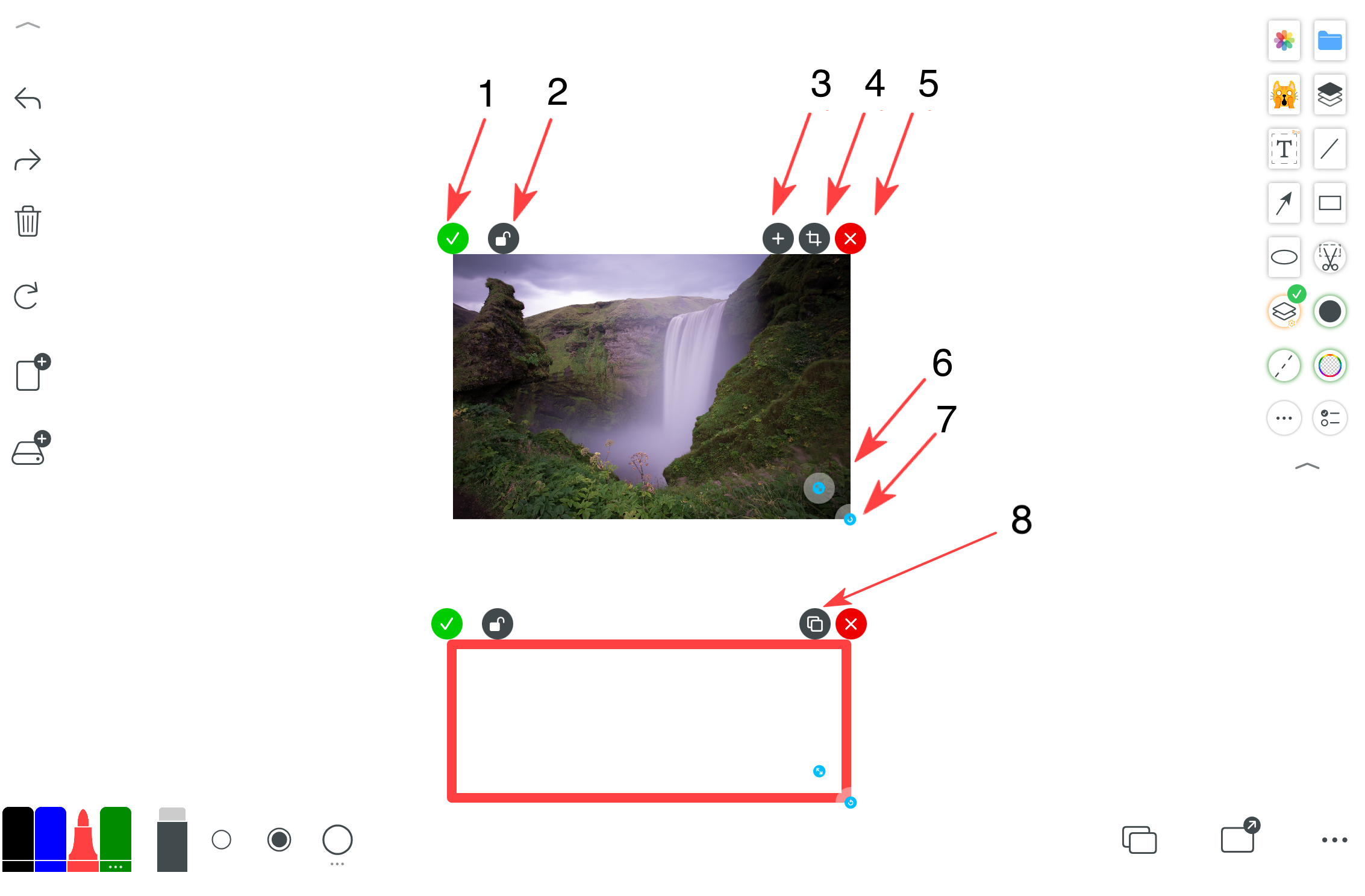
1) Pin to canvas: after pinning, it can only be erased with the eraser.
2) Lock on canvas: after locking, you must unlock from the center before deleting.
3) Send to a new page: gives more space for teaching and explanation.
4) Open image editing tools for that layer.
5) Remove this layer.
6) Duplicate this layer.
6. One-stroke Shapes & Geometry
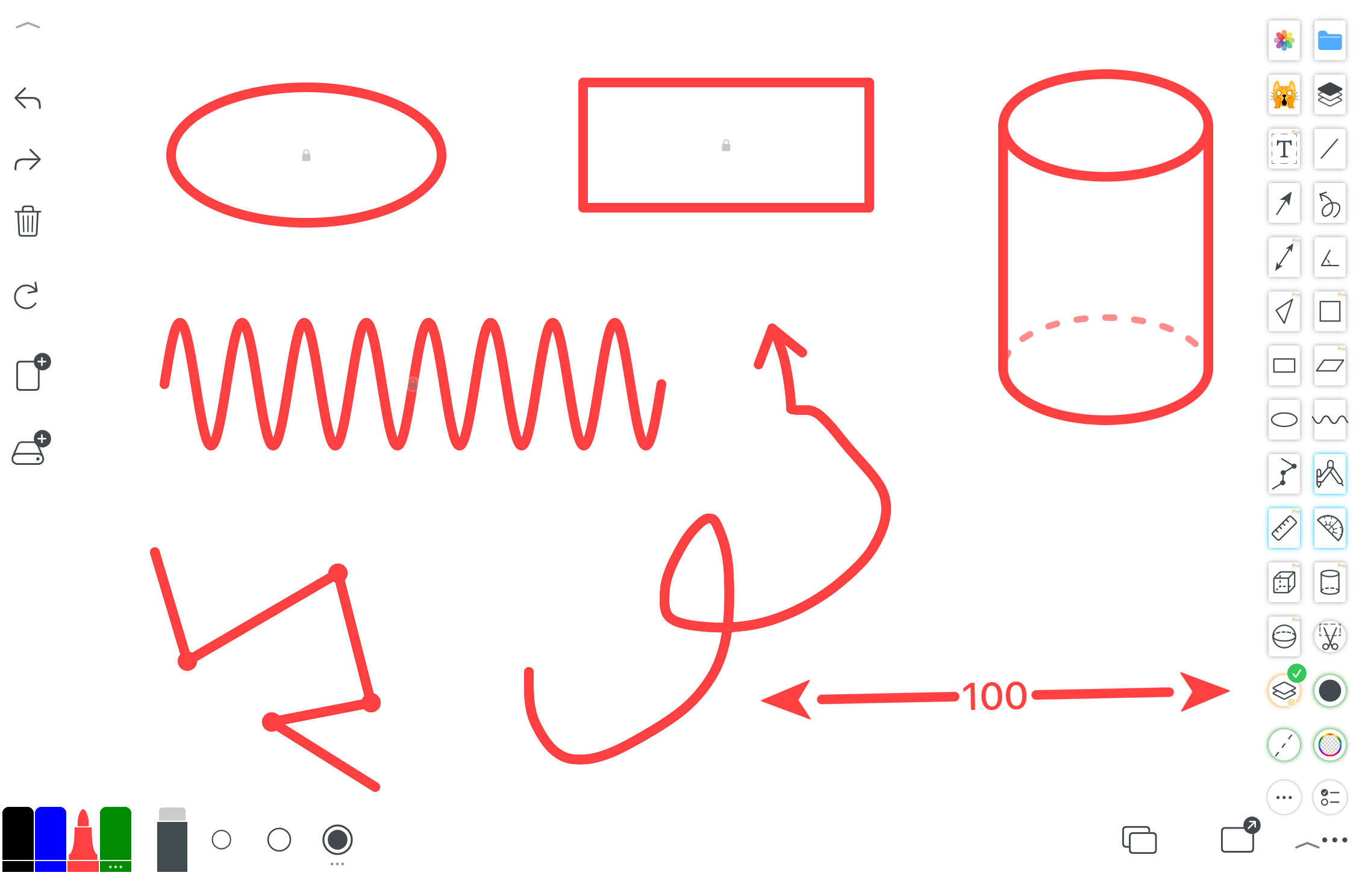
Arrows, 2D shapes, 3D solids, and rotatable 3D models.
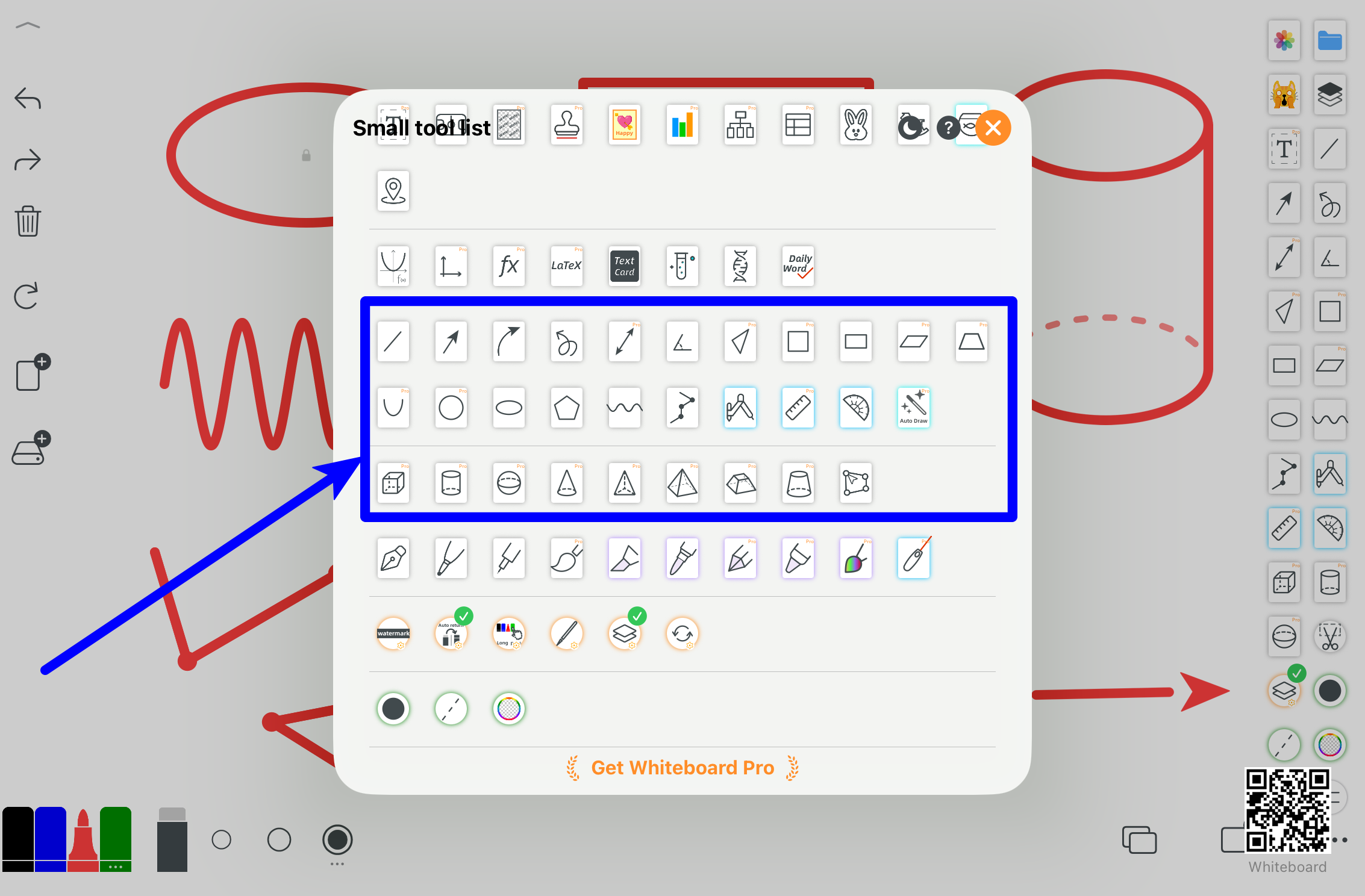
More examples and use cases.
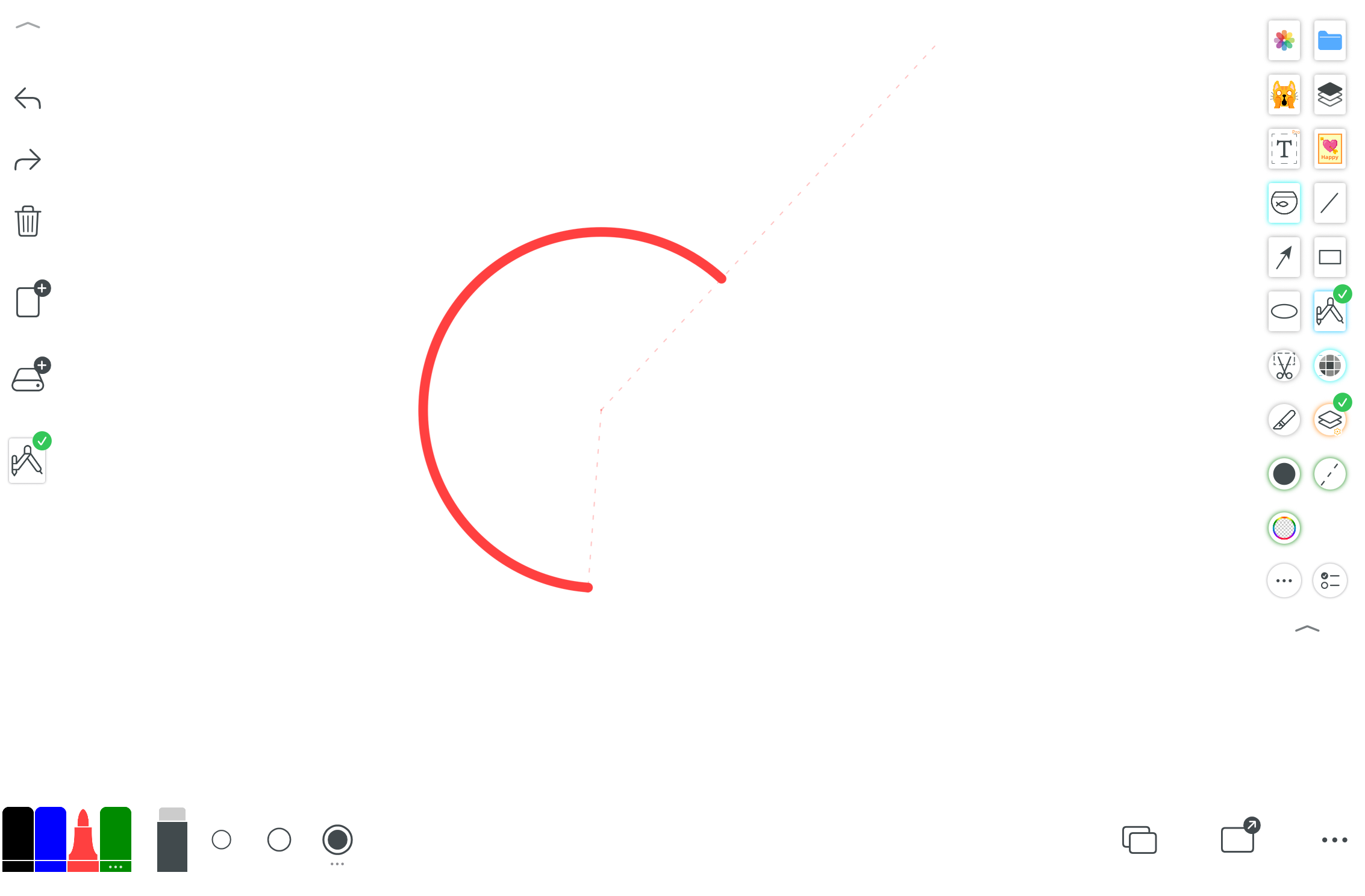
Draw circles, arcs, and geometric constructions.
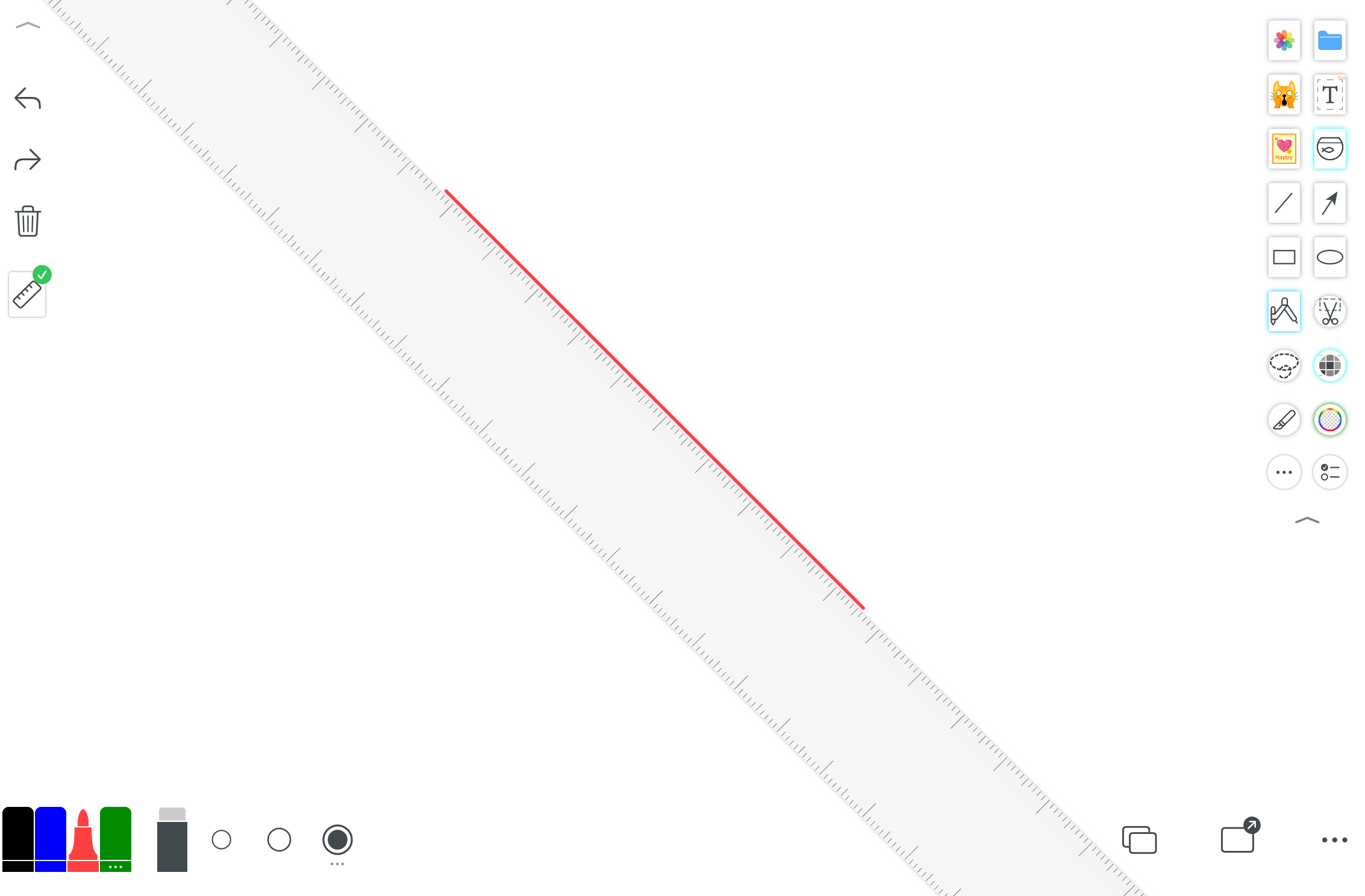
Draw straight lines and assist measurement.
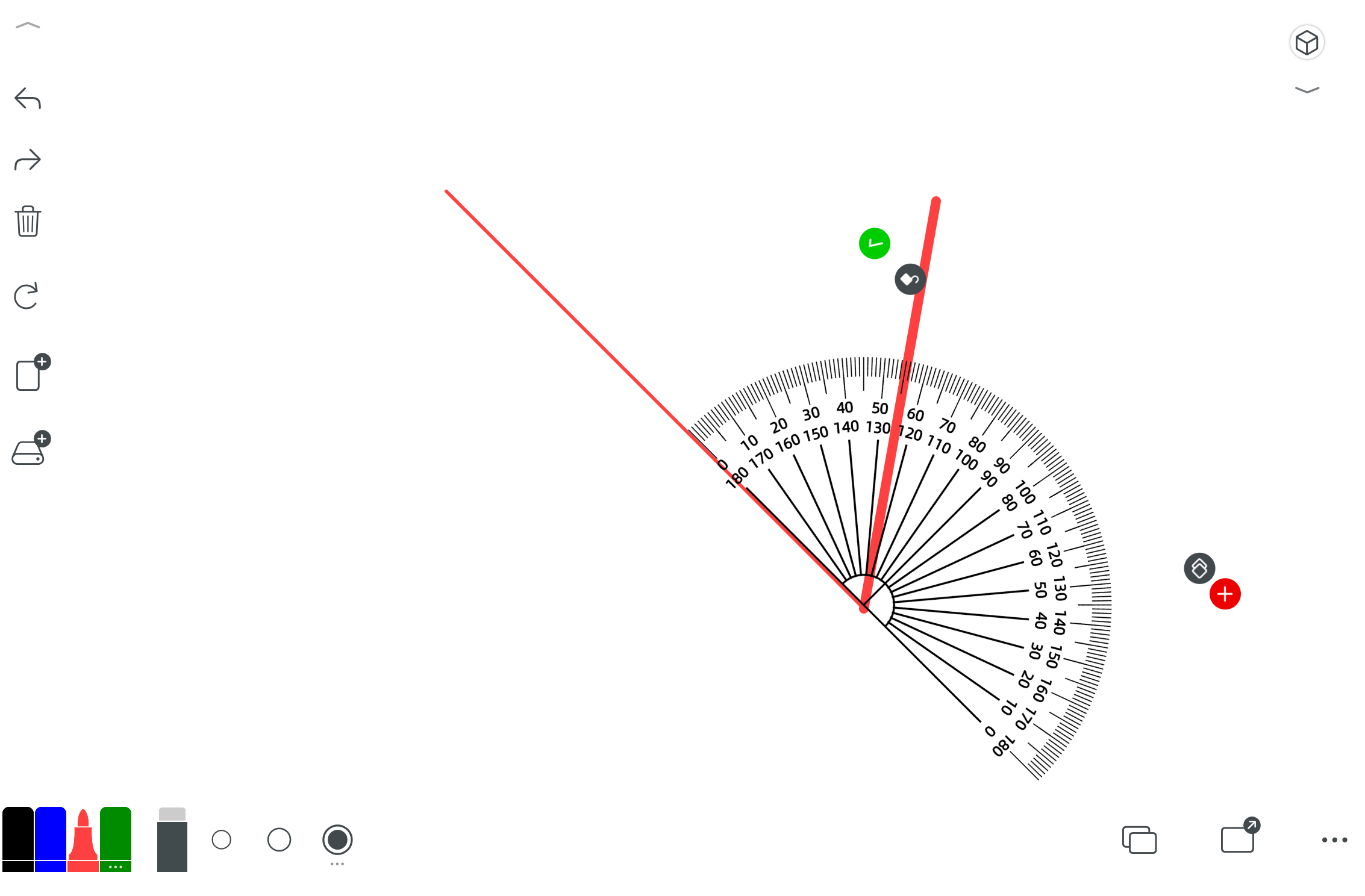
Measure and draw angles.
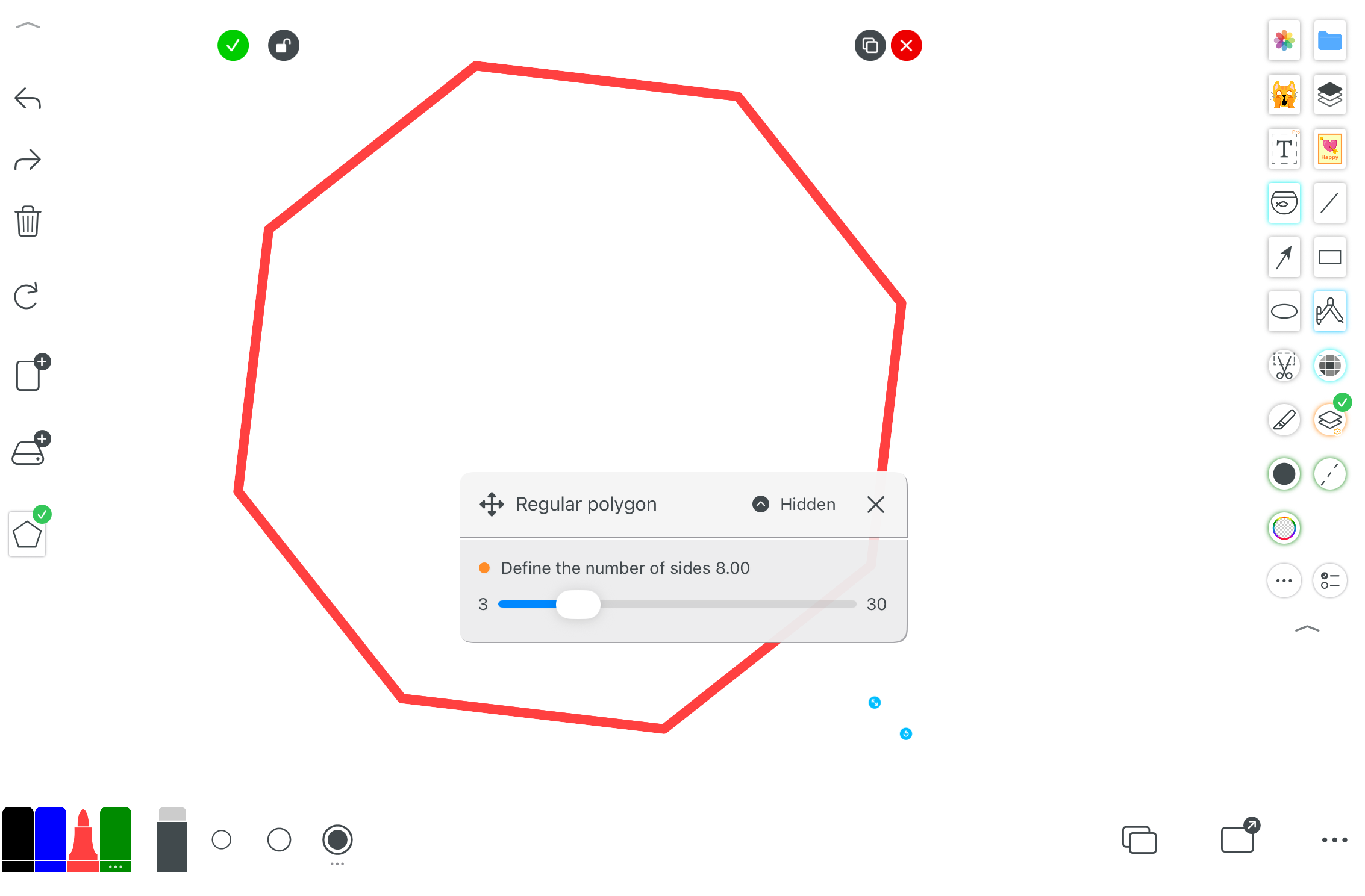
Quickly create regular or custom polygons.
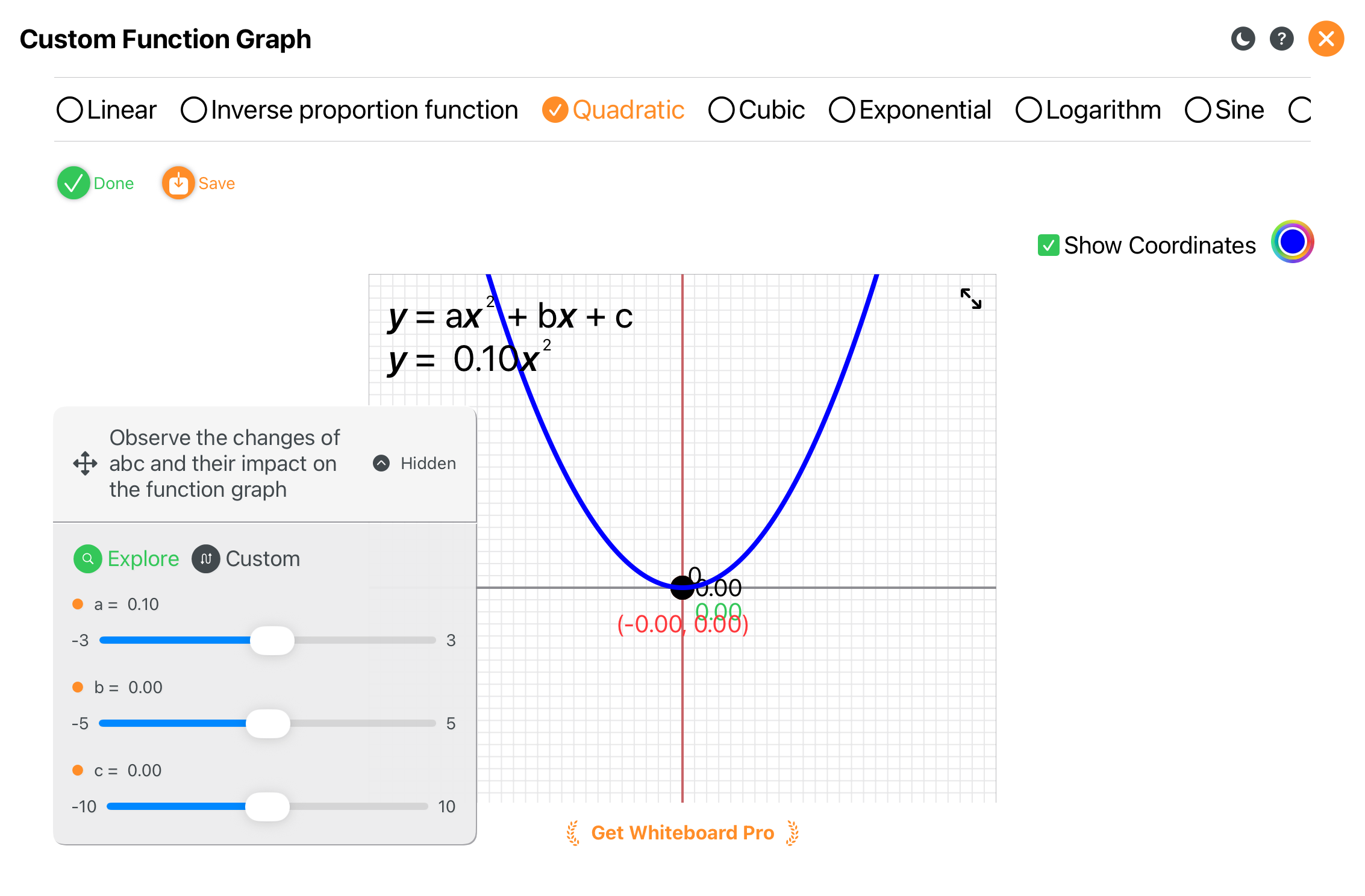
See function graph changes dynamically as parameters update.
7. Laser Pointer
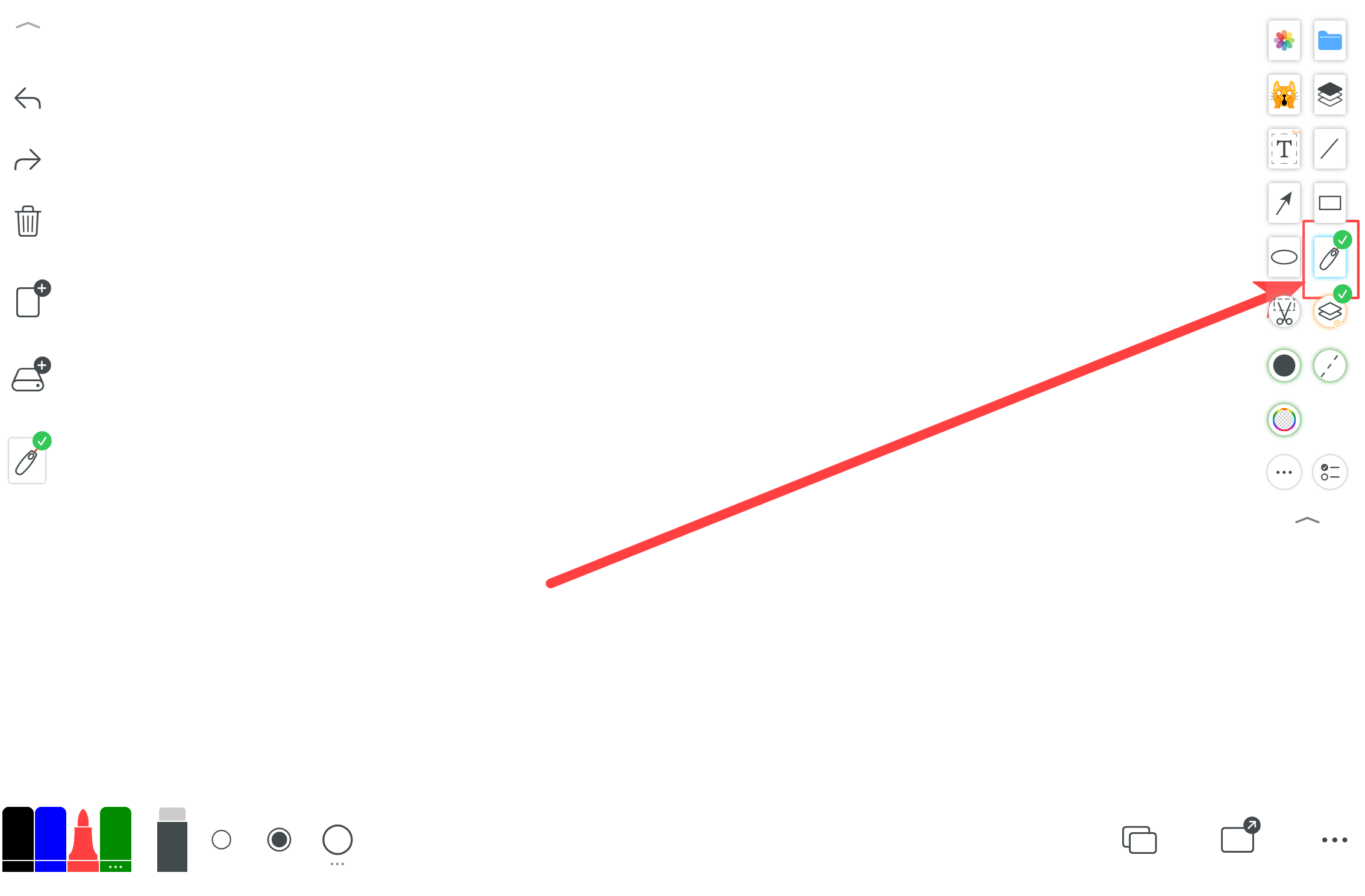
A presentation-friendly laser pen with special behavior. You can customize quick erase or delayed fade-out.
8. Pen Types
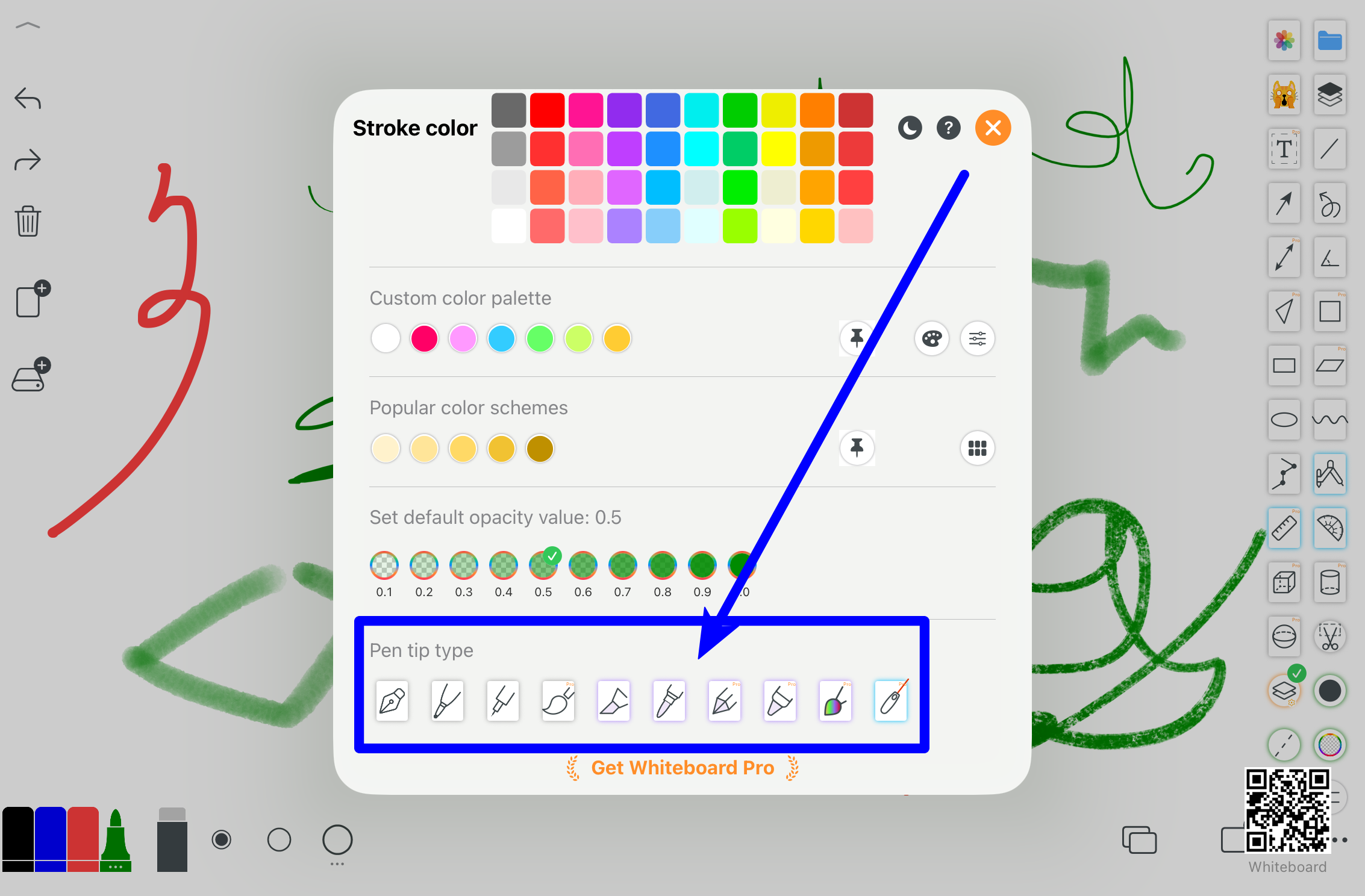
Default whiteboard pen plus multiple styles.
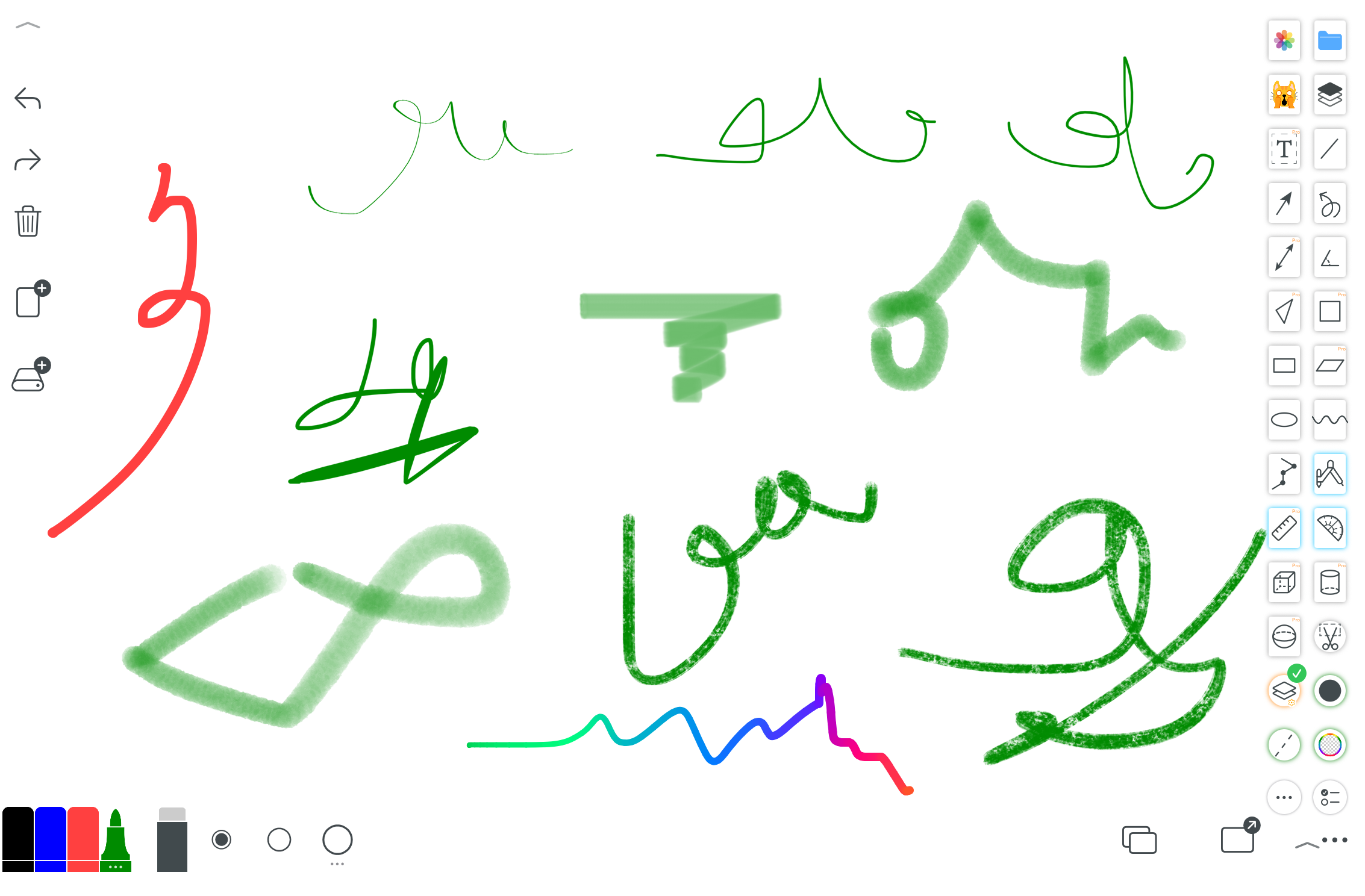
Fountain pen, crayon, pencil, brush, watercolor, laser pen, and more.
9. Image Editing Tools
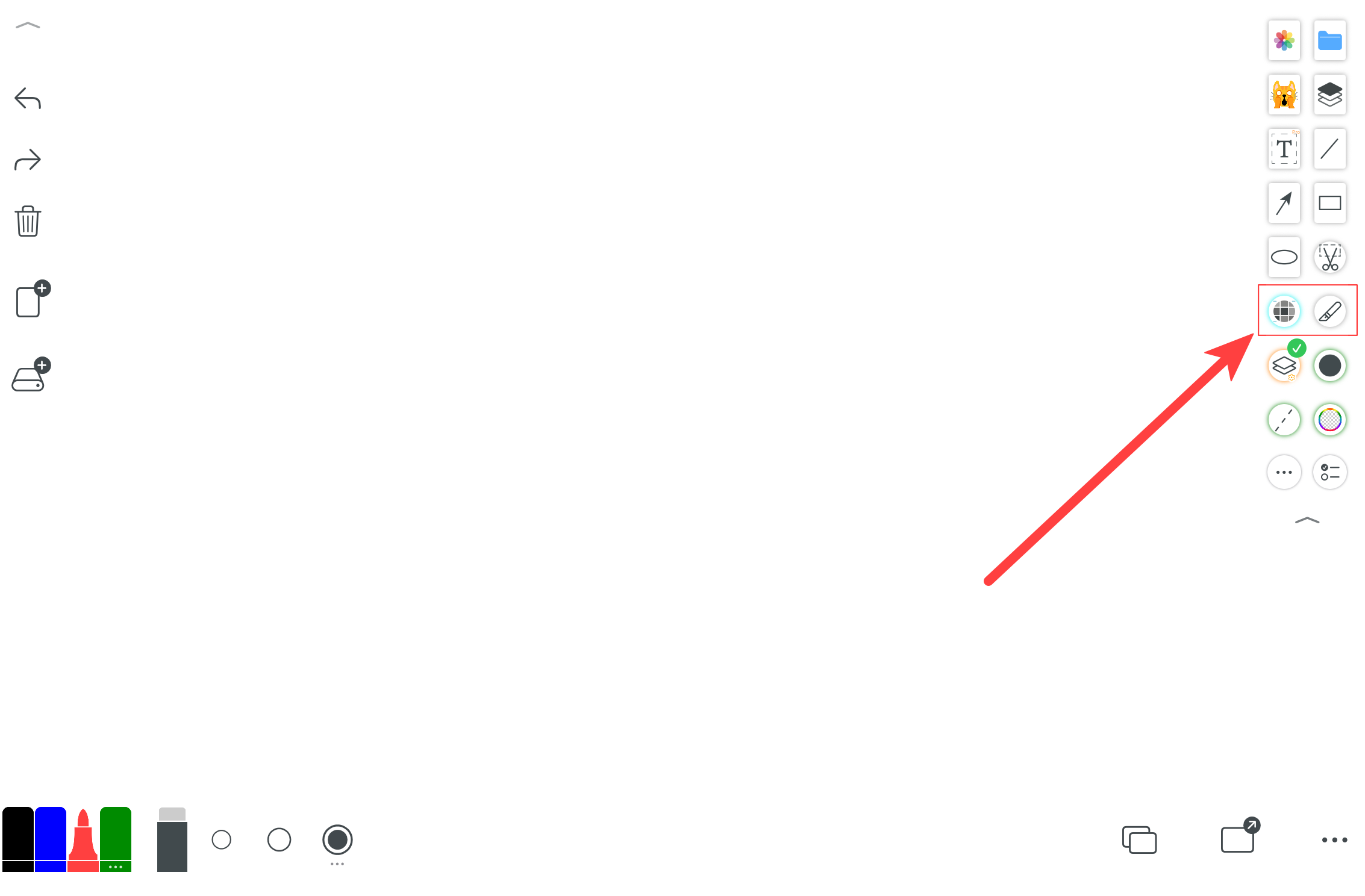
Edit, crop, annotate, and enhance images.
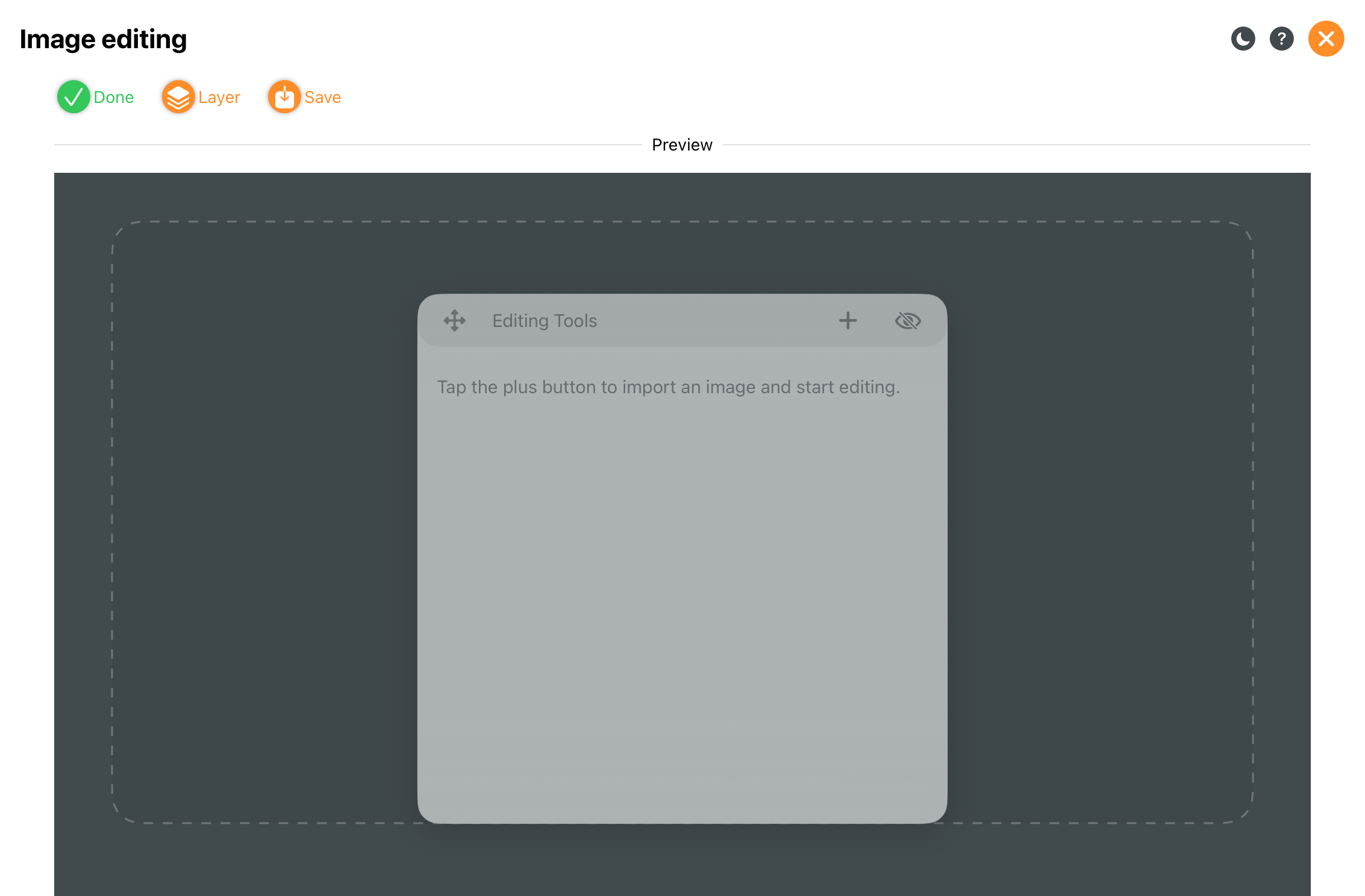
Full-featured image editing.
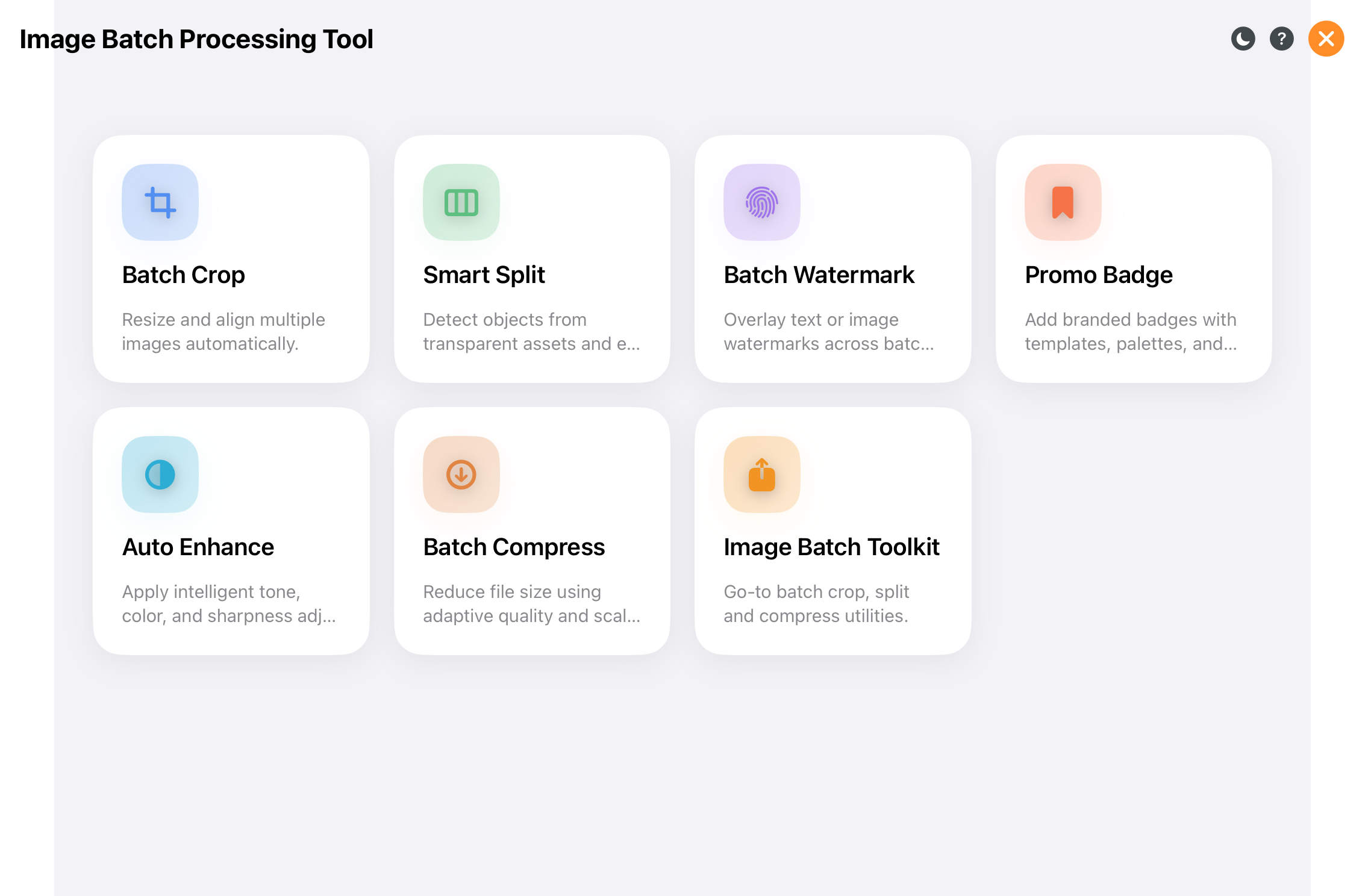
Process many images at once.
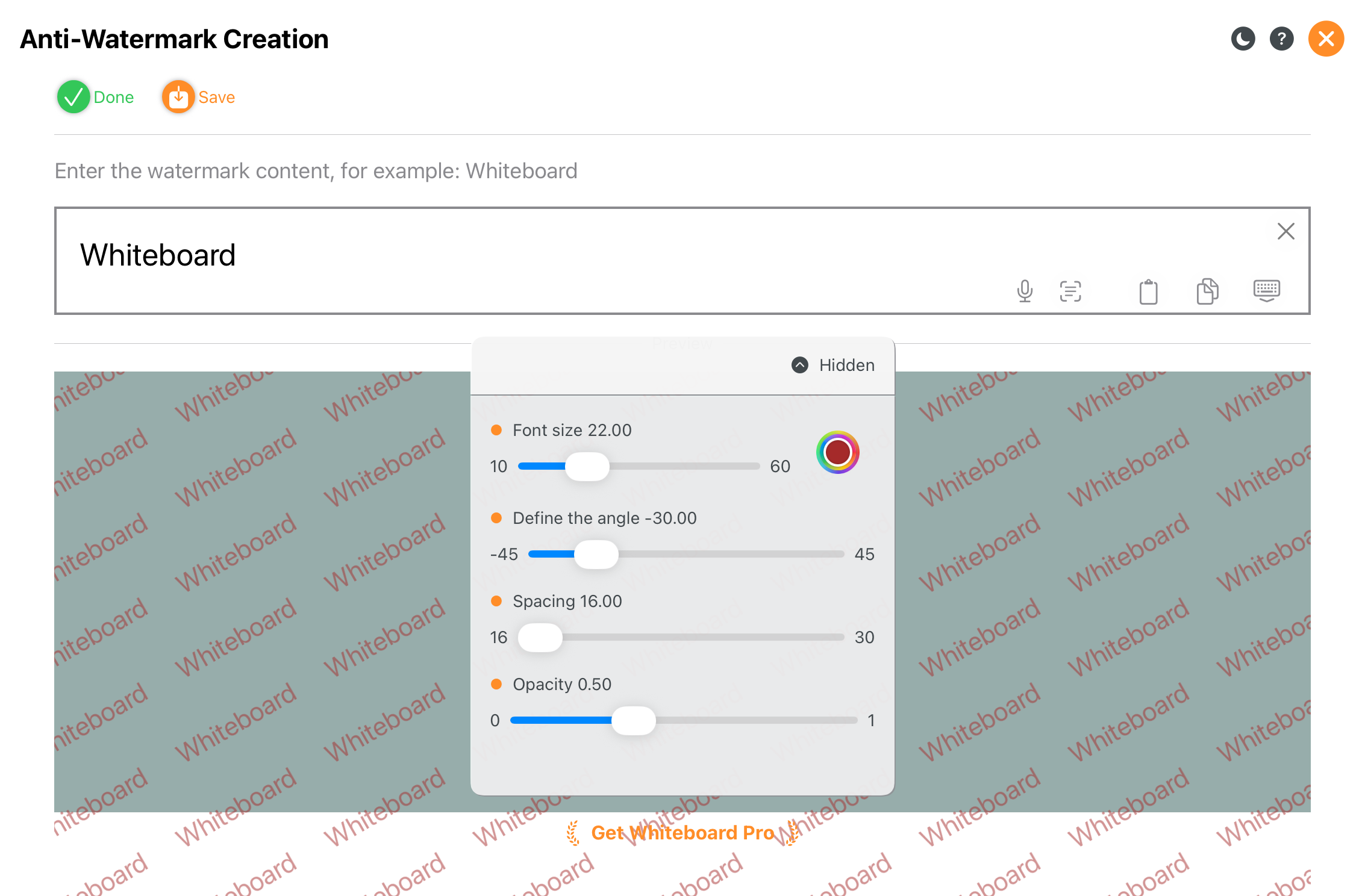
Apply a full-screen watermark quickly.
10. Mind Maps
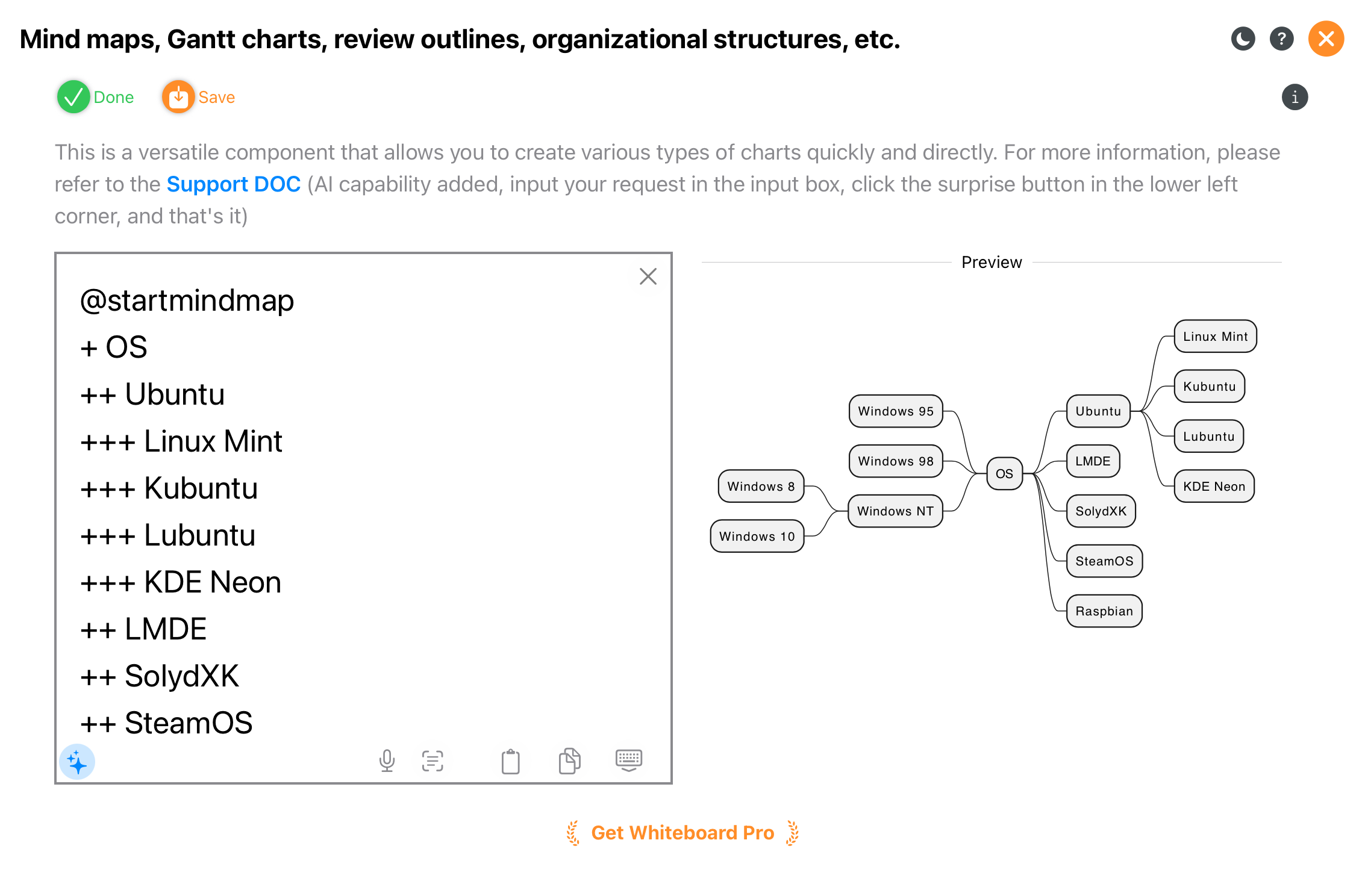
Summarize knowledge and structure ideas.
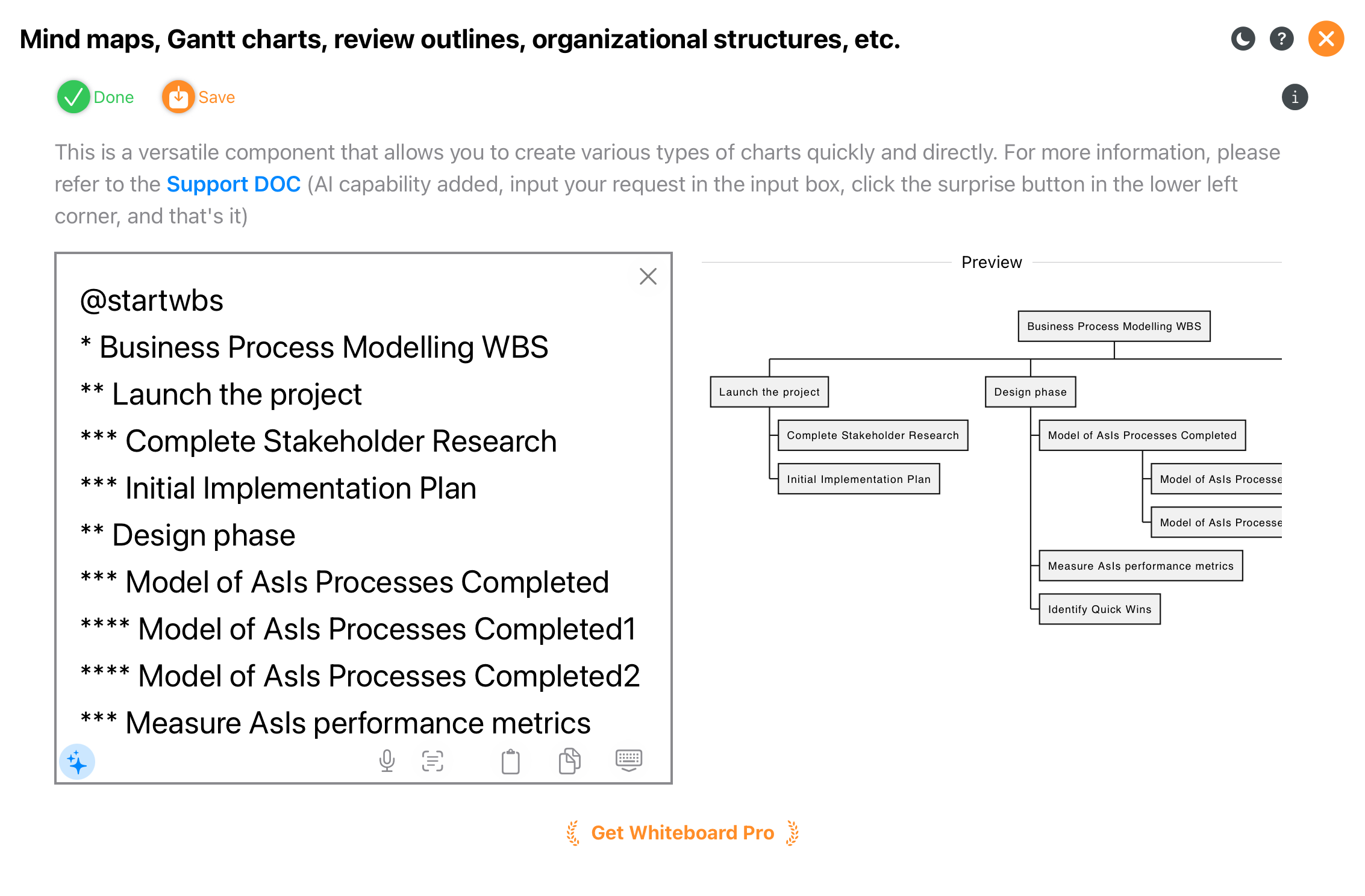
Organization structure and work breakdown.
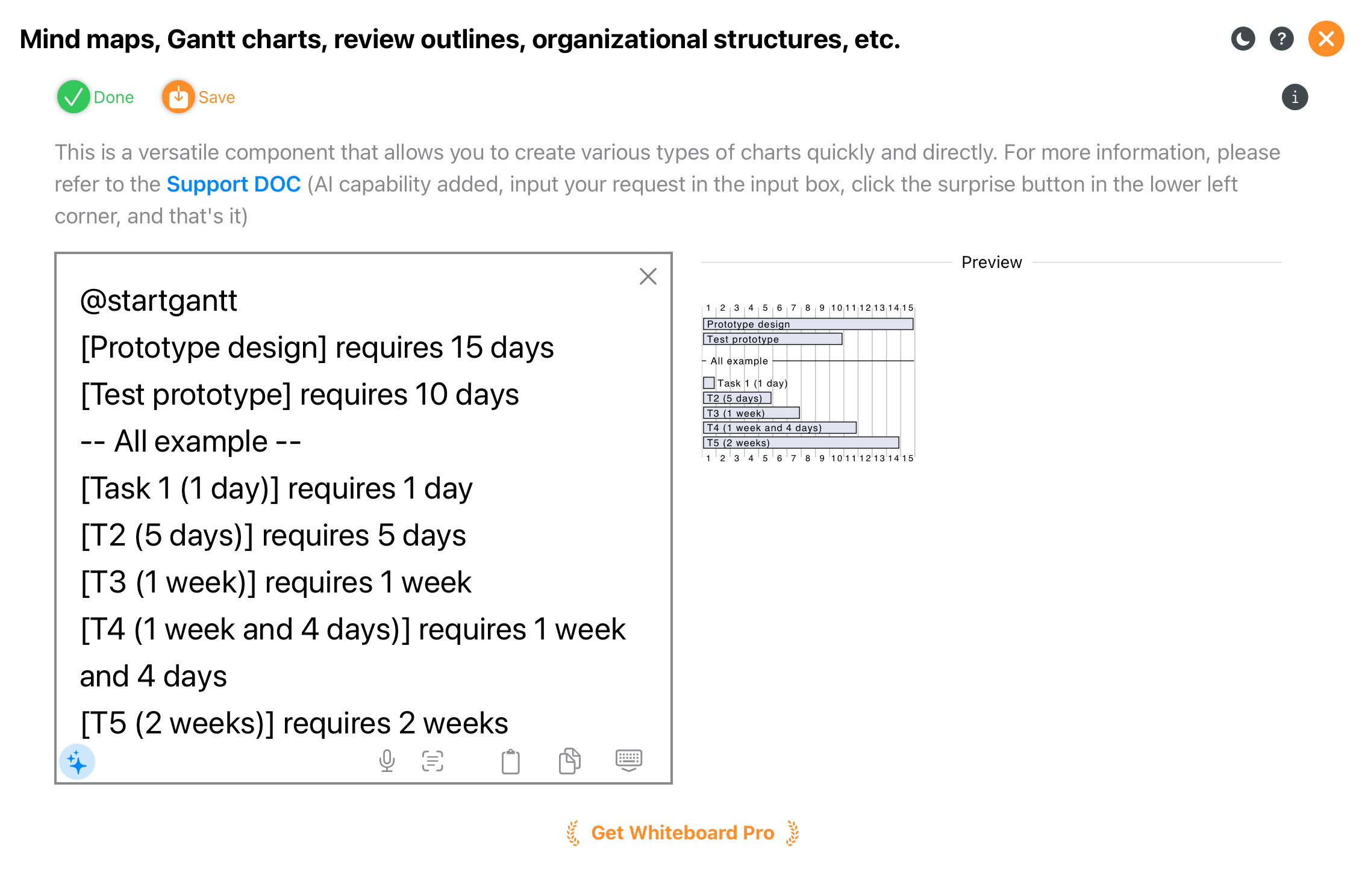
Plan schedules and manage projects.
11. Stickers, Examples, Line Art & 3D
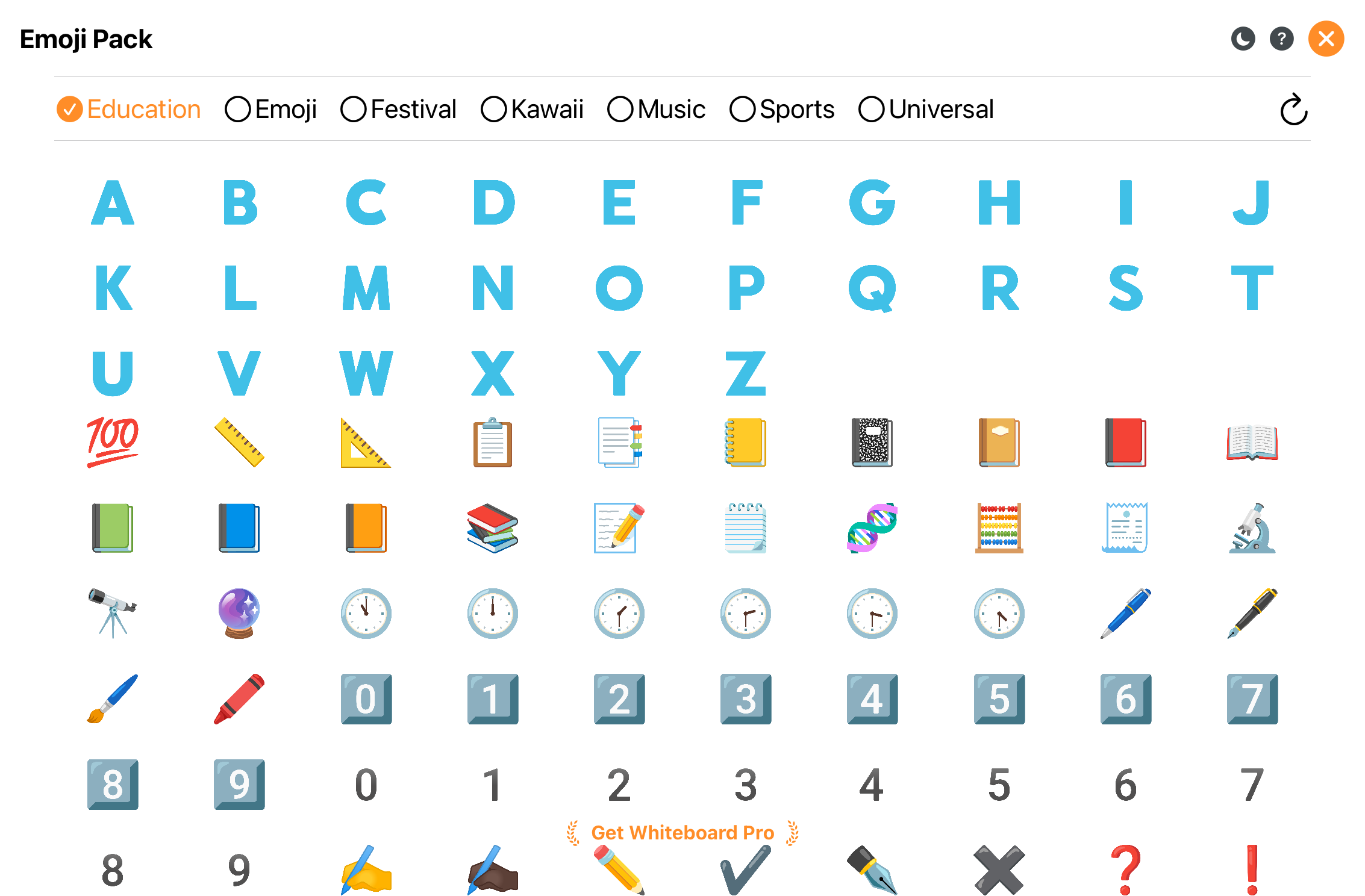
Insert emojis and stickers quickly.
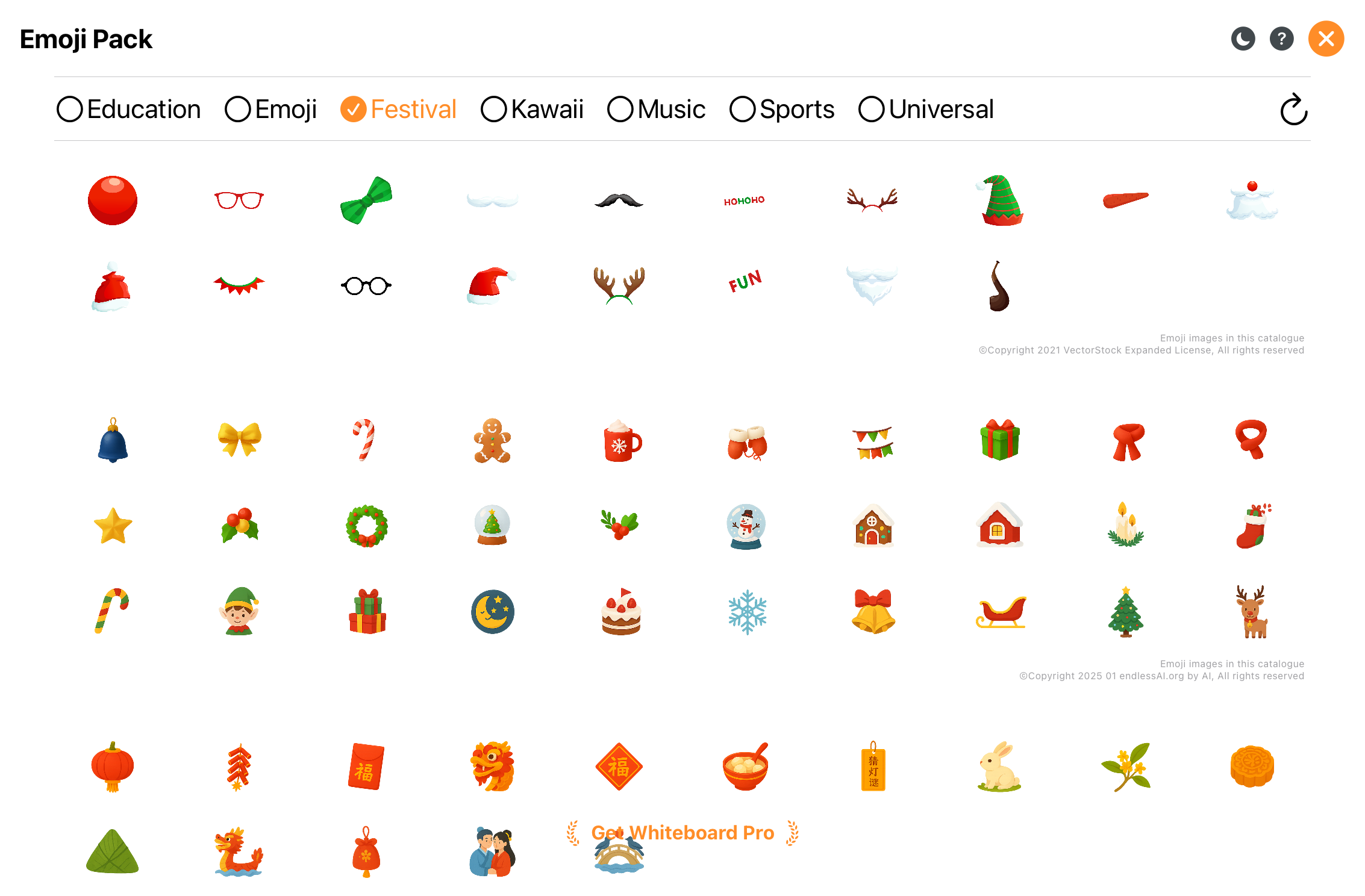
More sticker resources.
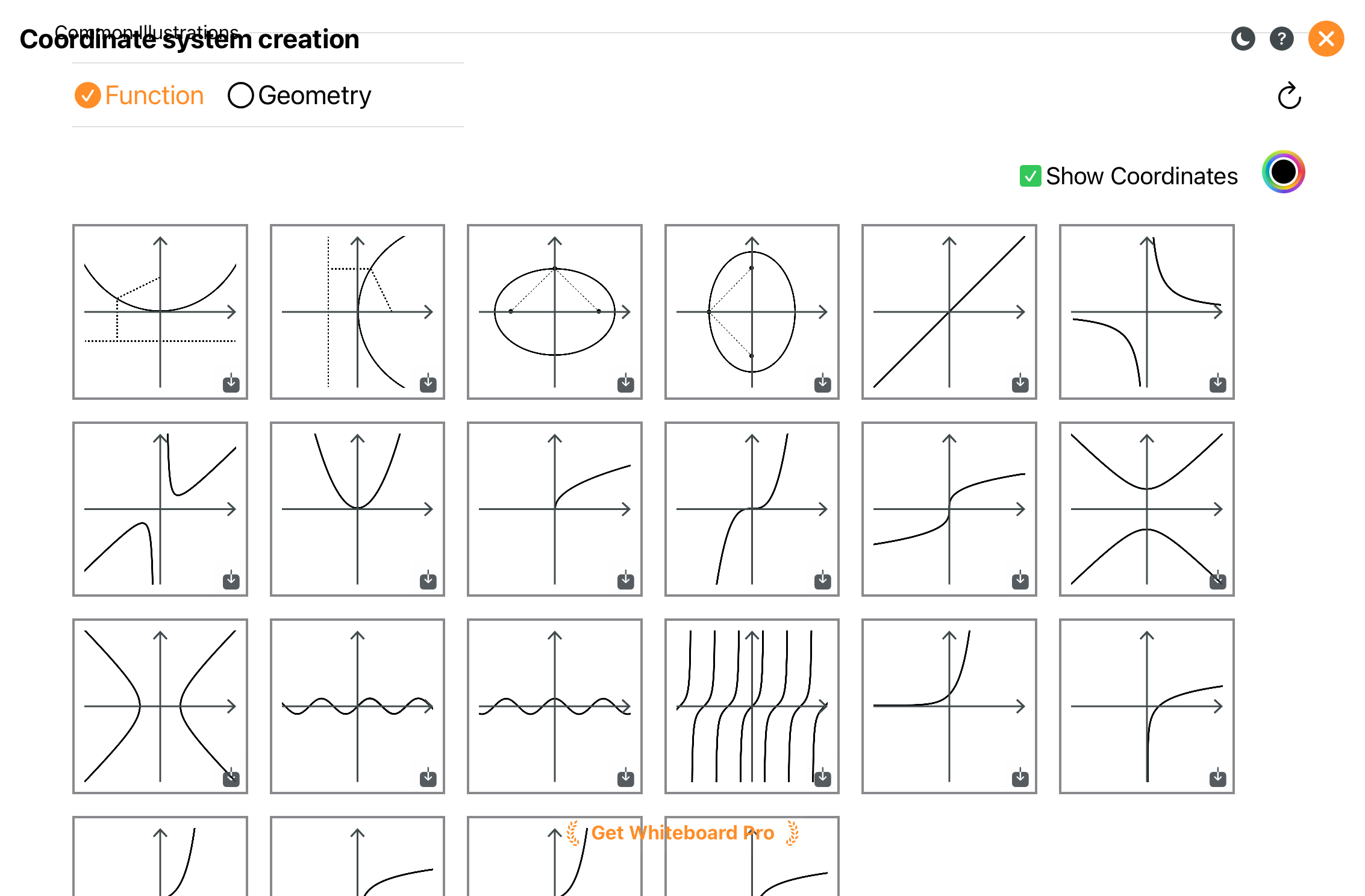
Examples for teaching and demonstrations.
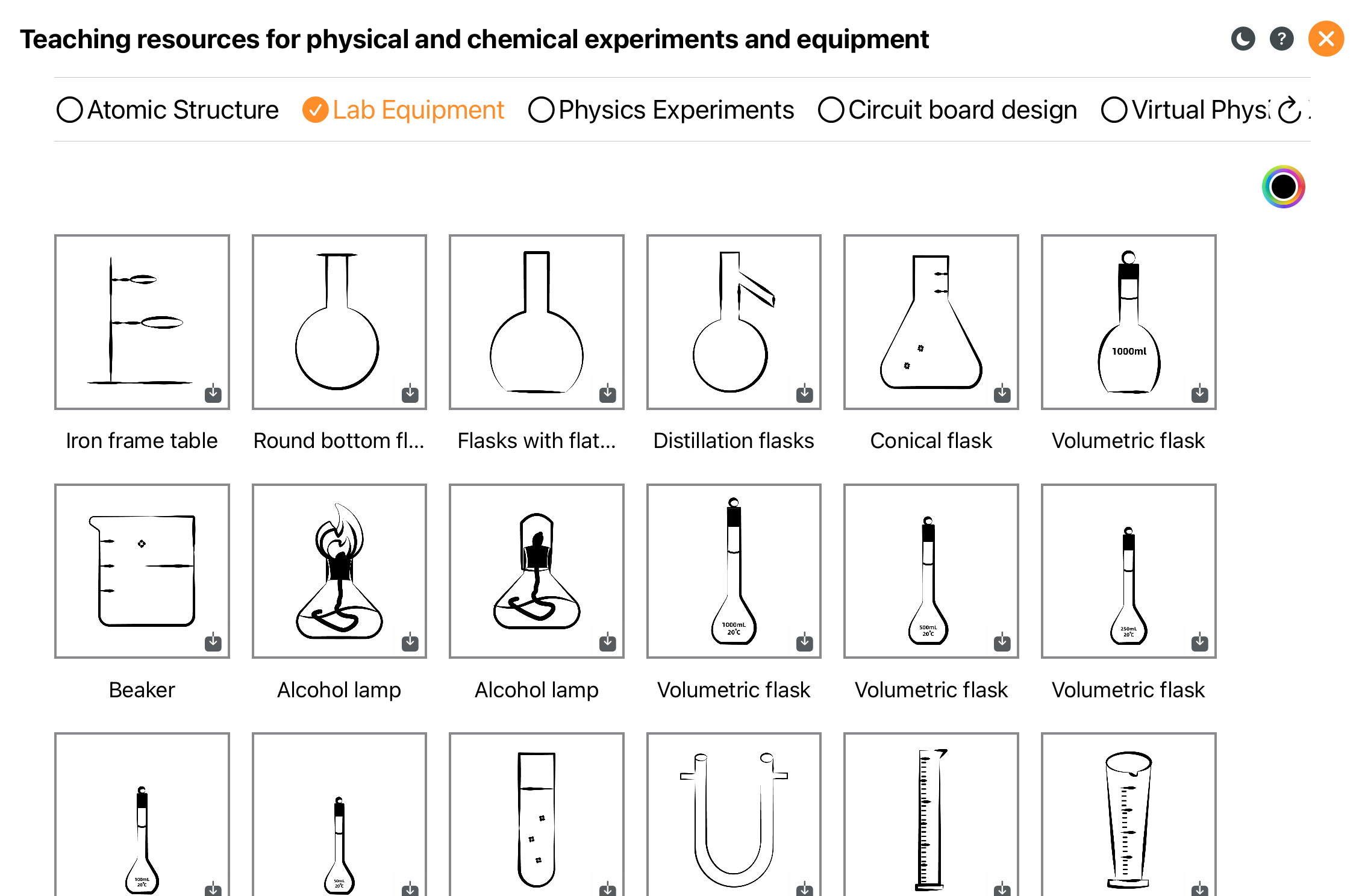
More examples.
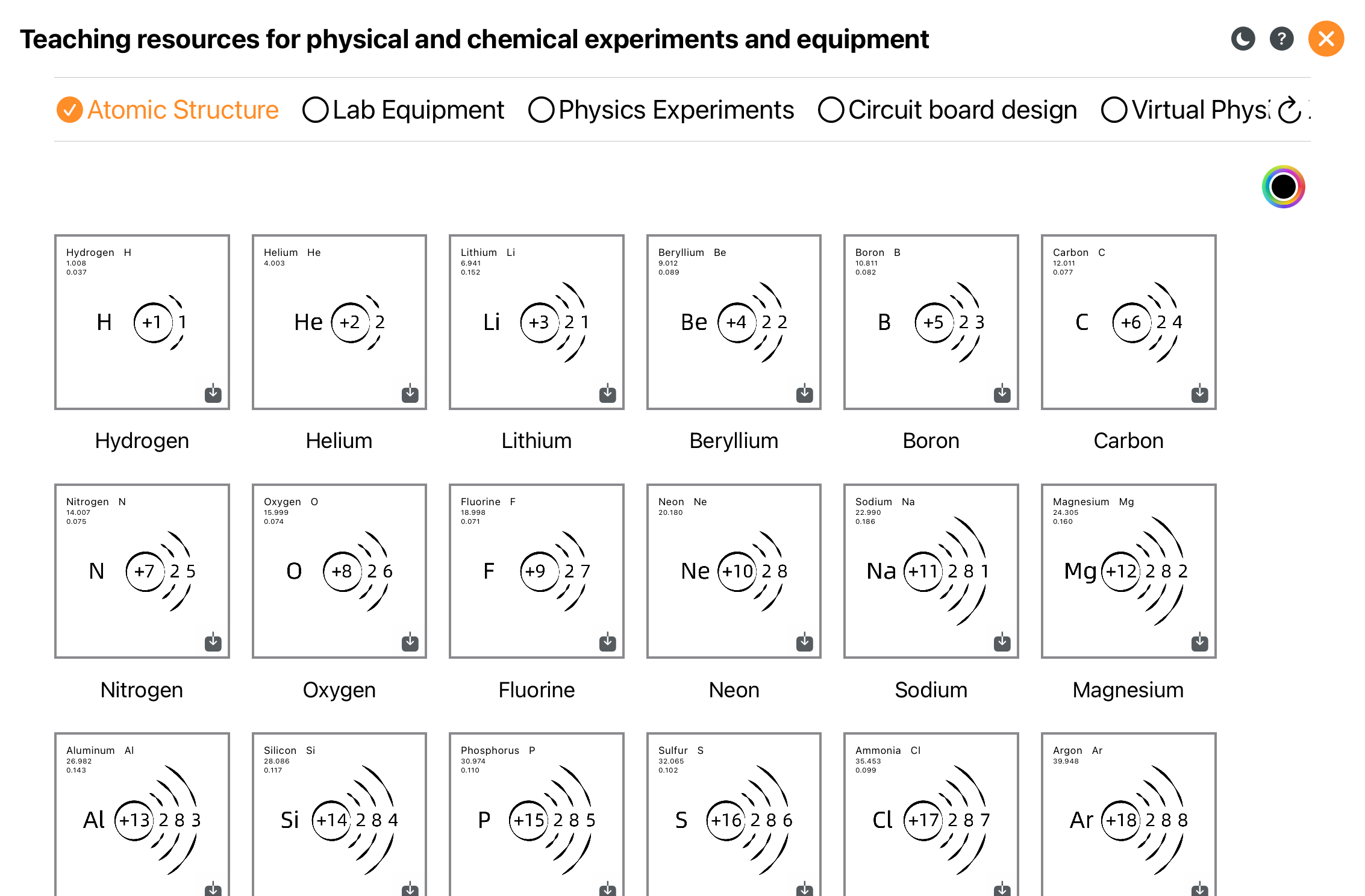
More examples.
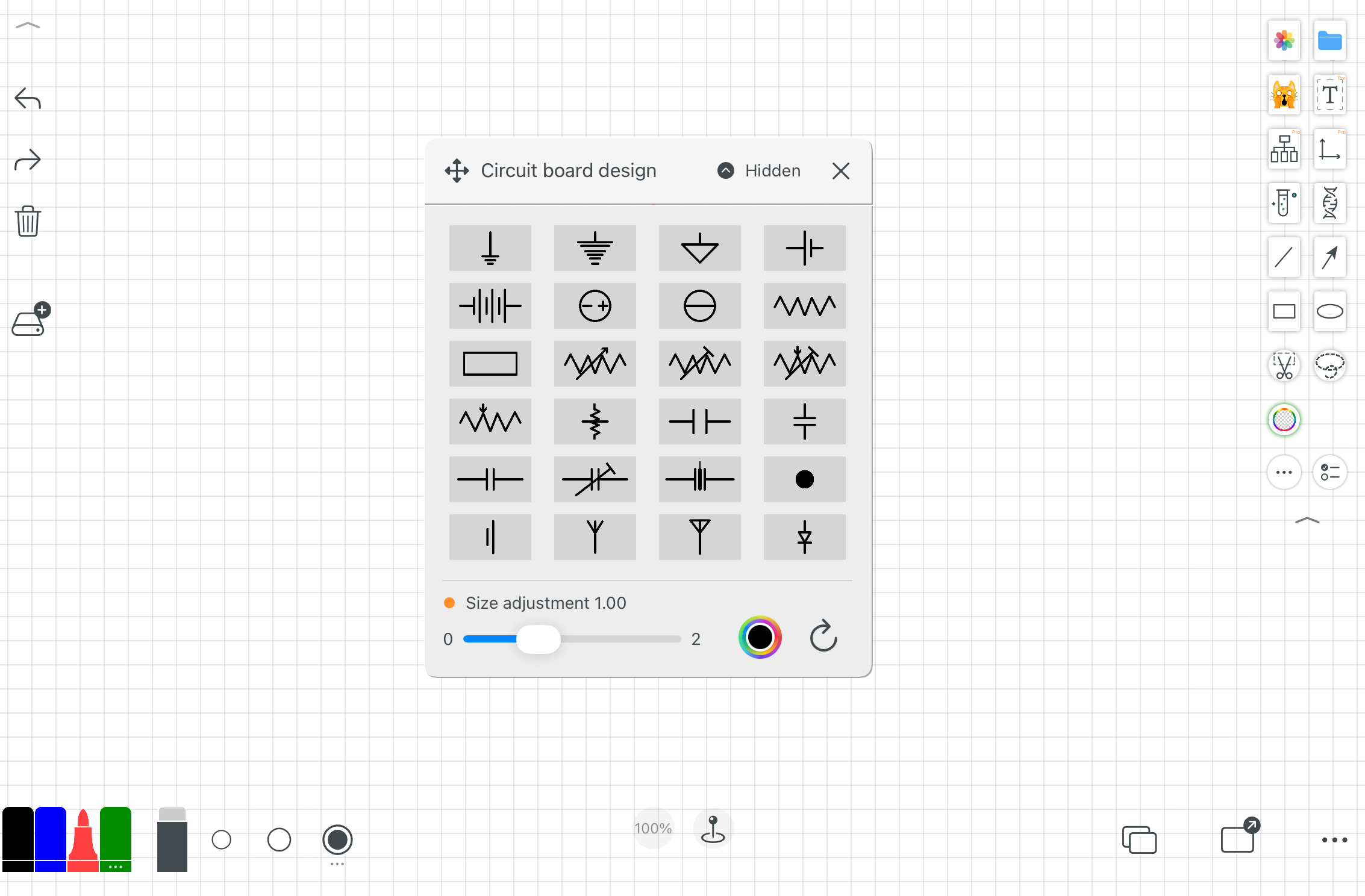
More examples.
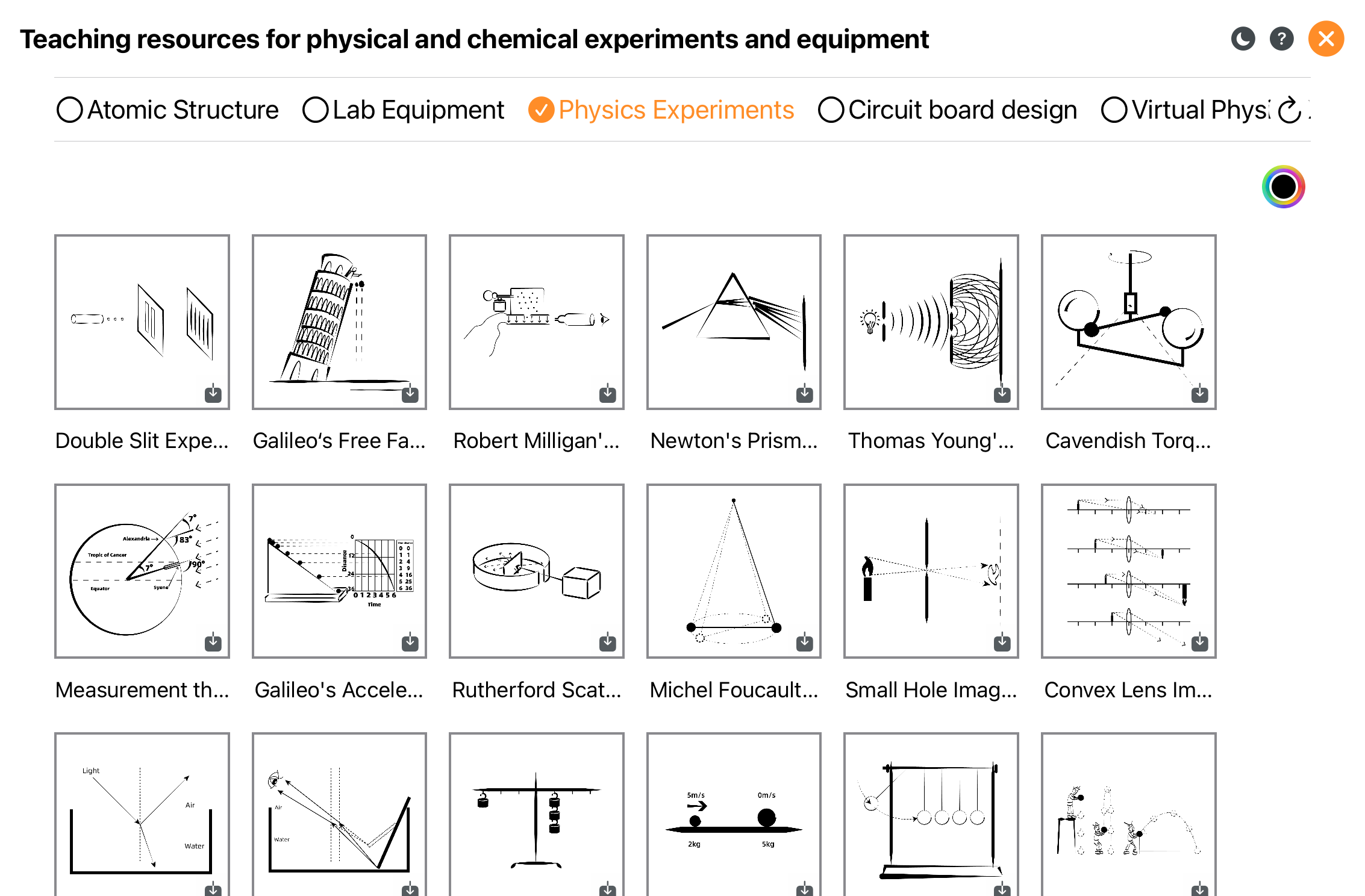
More examples.
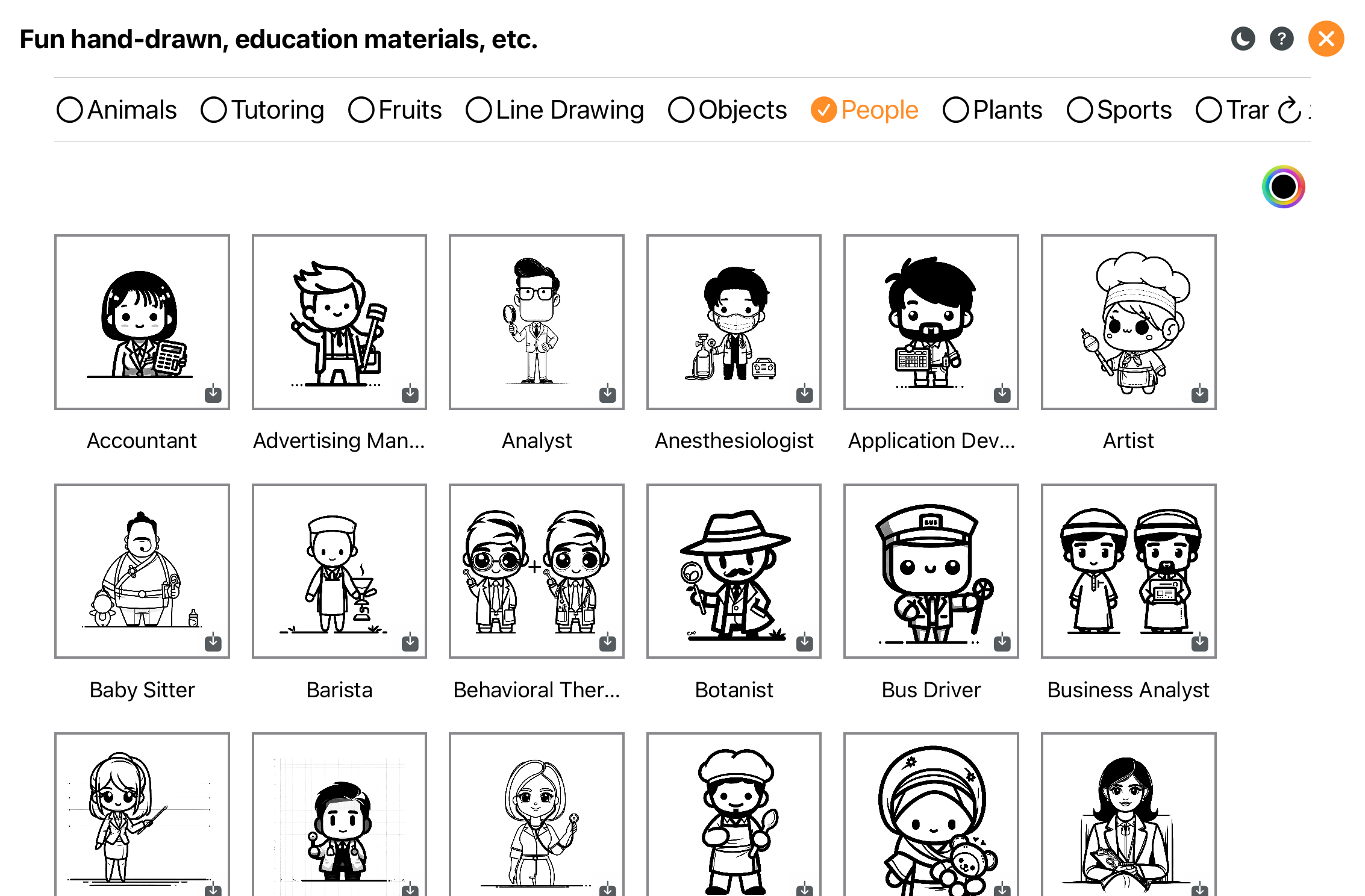
Line art and resource library.
Browse and use 3D resources.
12. Tables & Charts
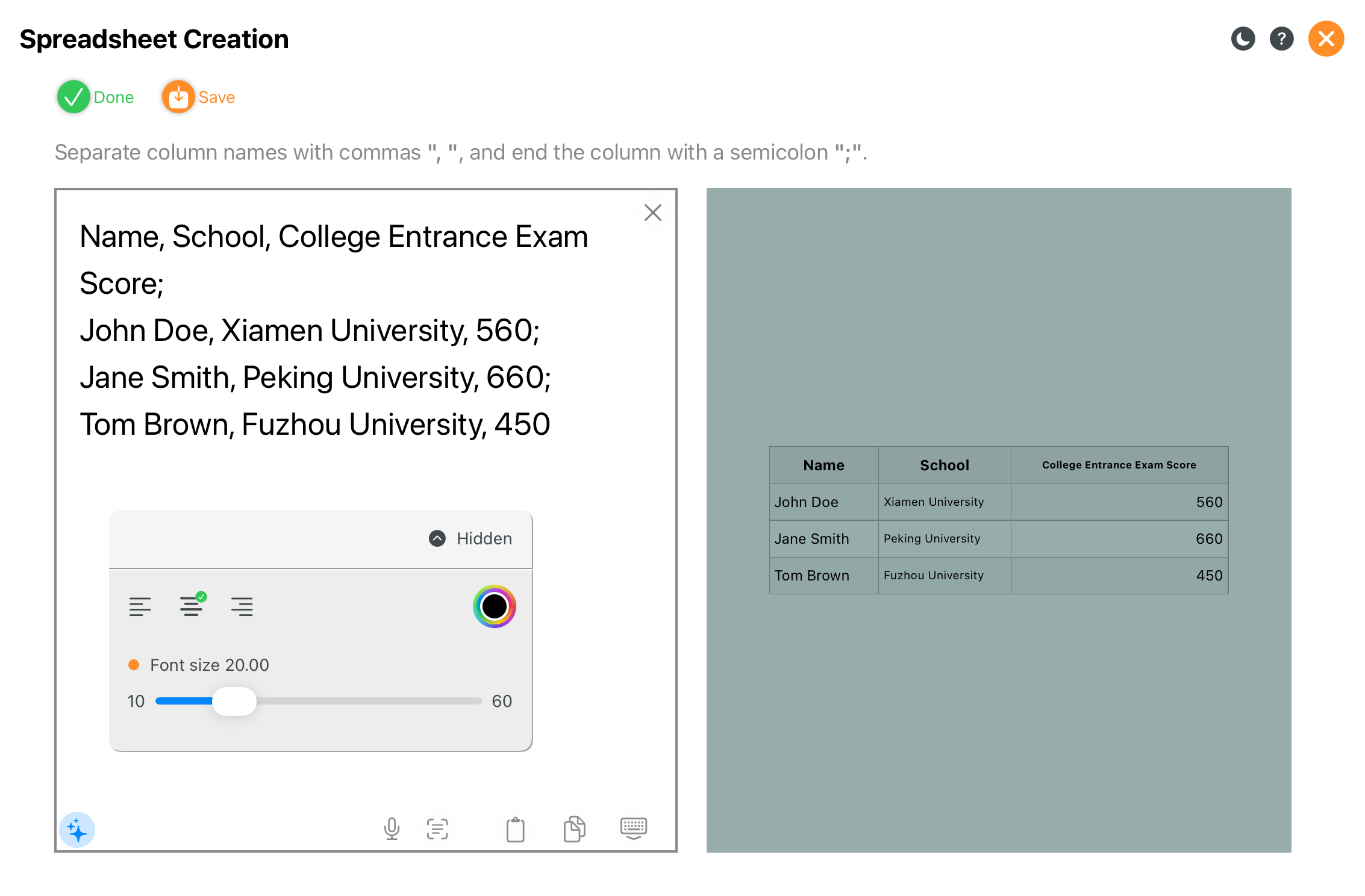
Create tables quickly for structured data.
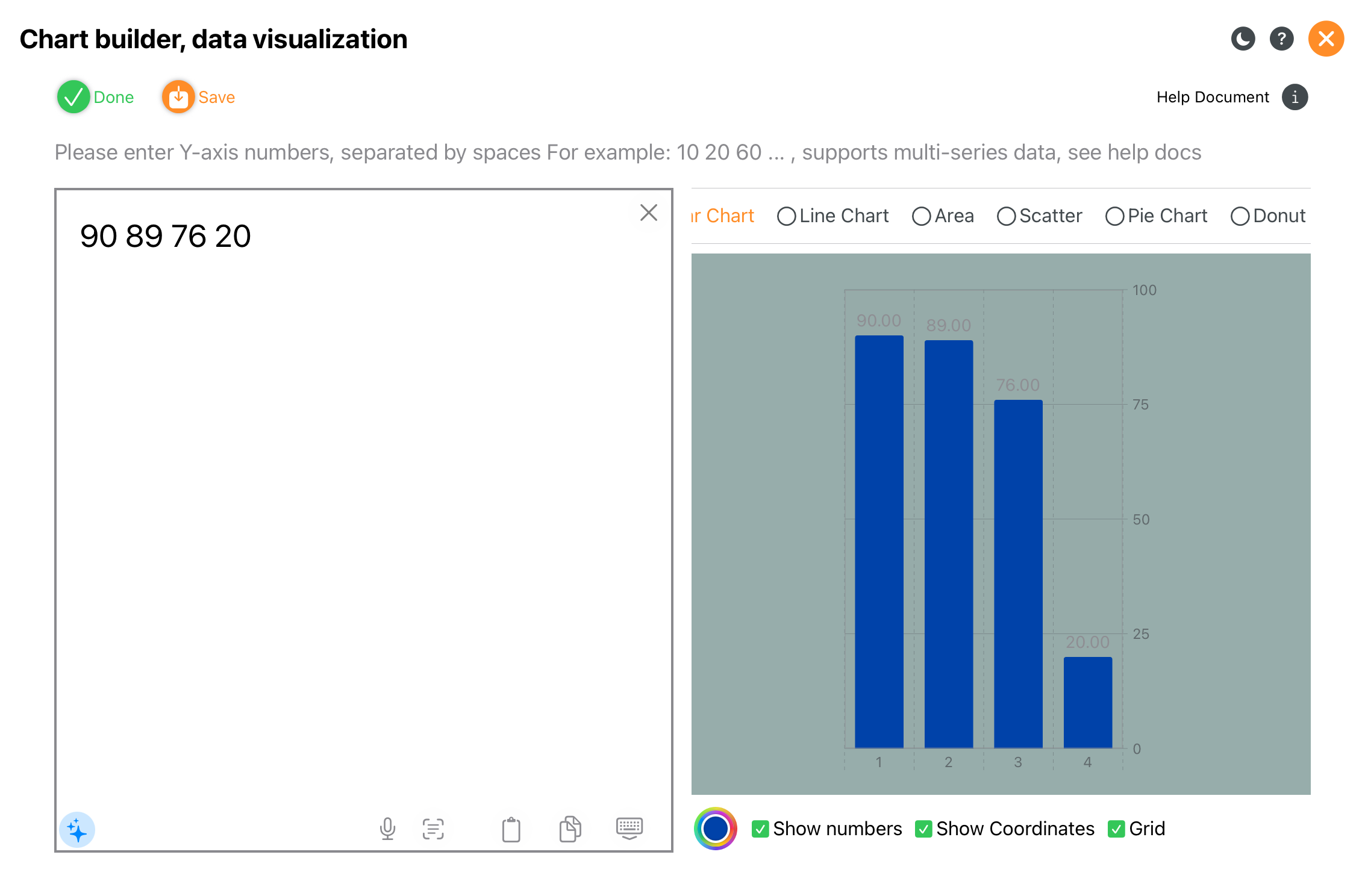
Visualize data for teaching and presentations.
13. Text Editing
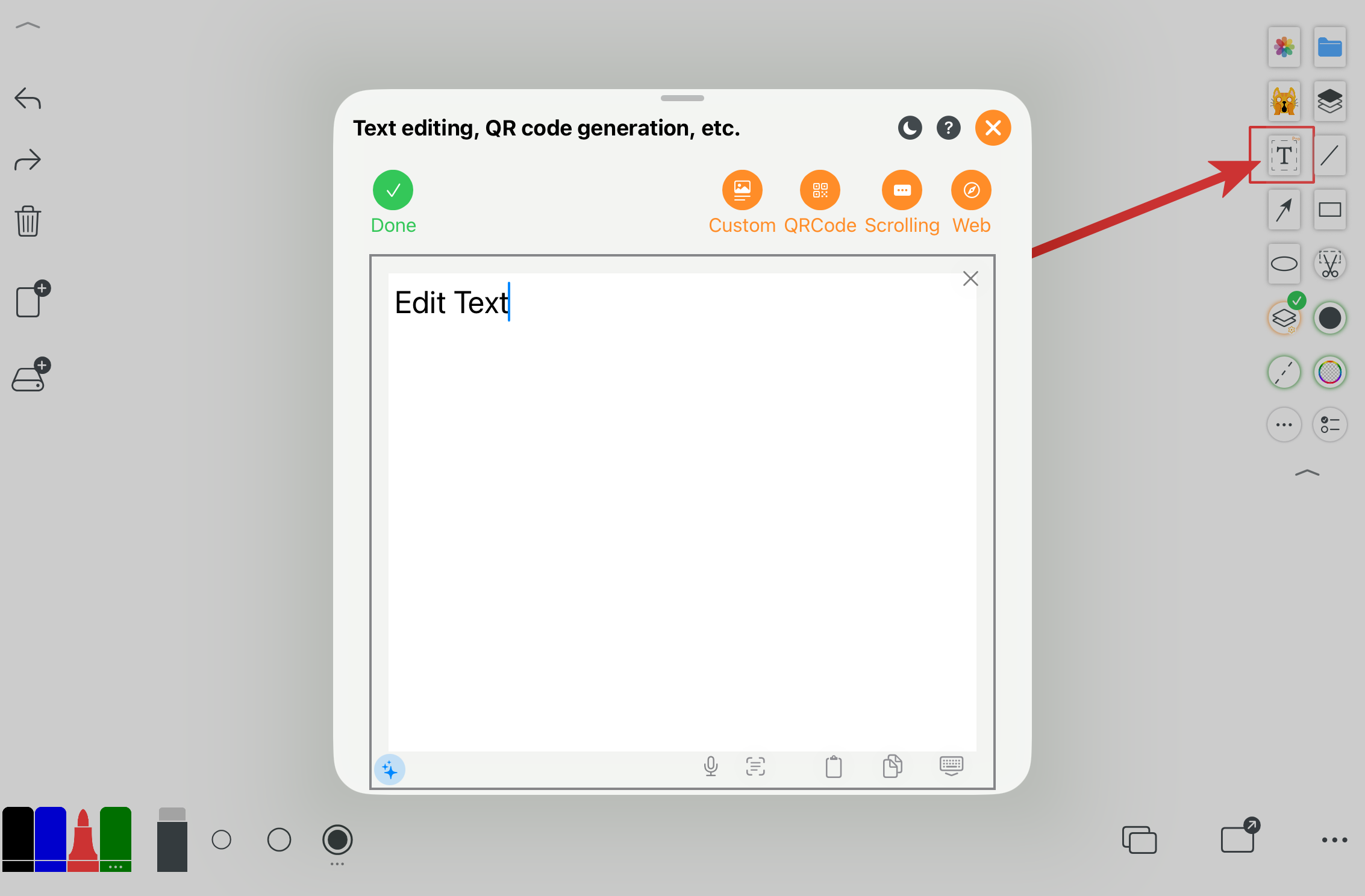
Insert and edit text for explanation and annotation.
14. Interactive Tools
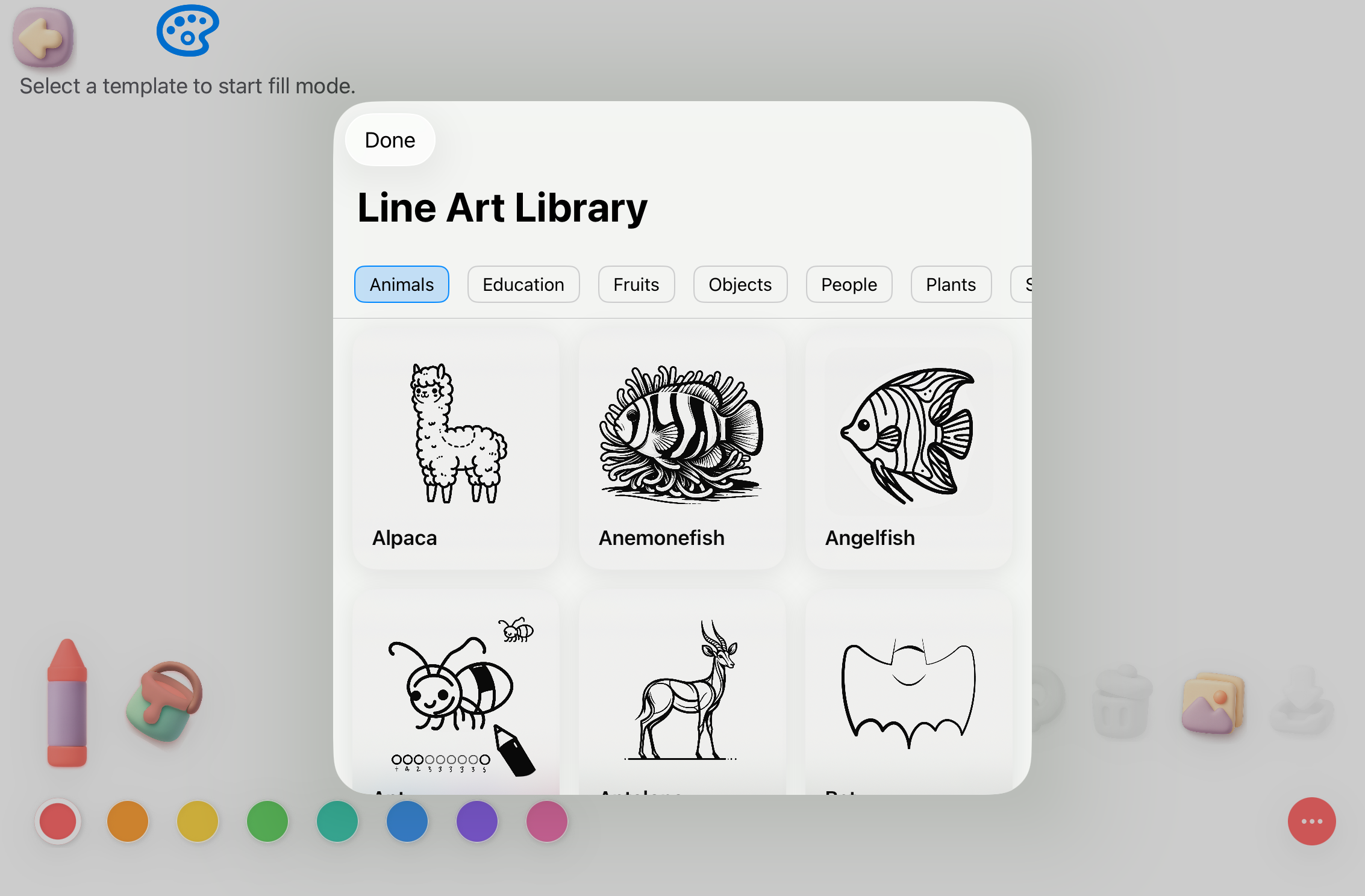
Doodle mode for young learners.
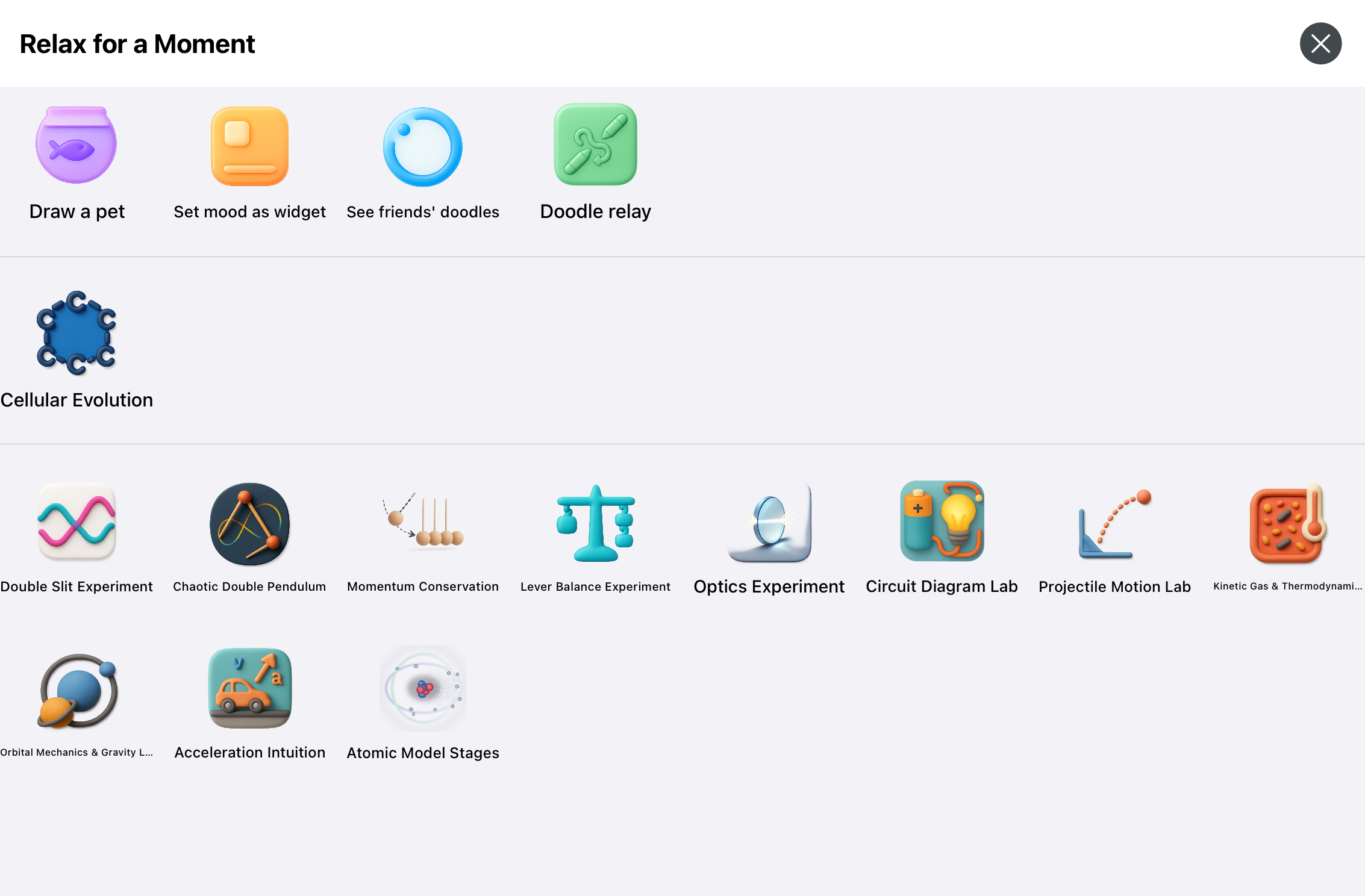
Interactive learning, including physics and chemistry experiments.
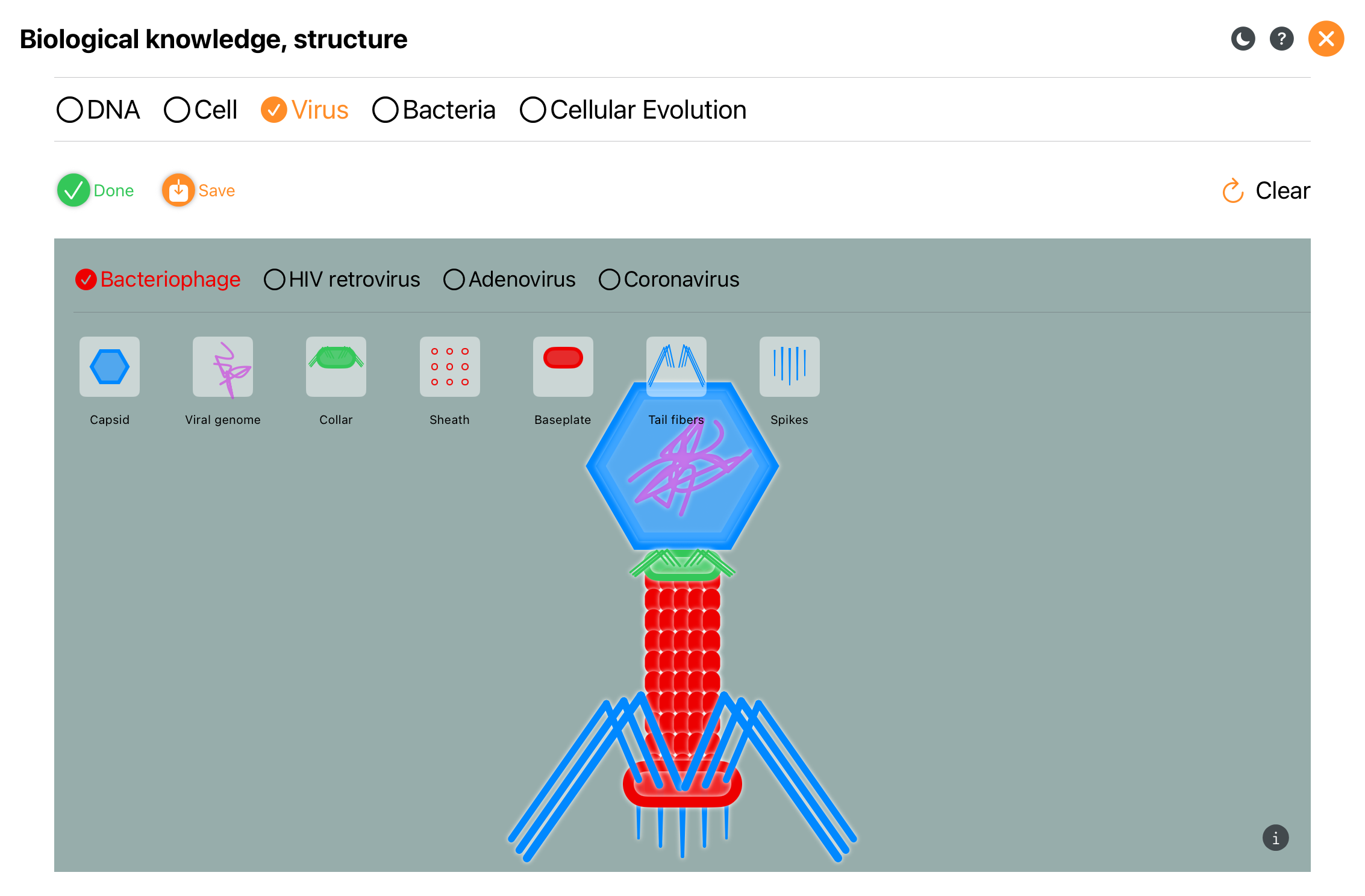
Interactive biology demonstrations.
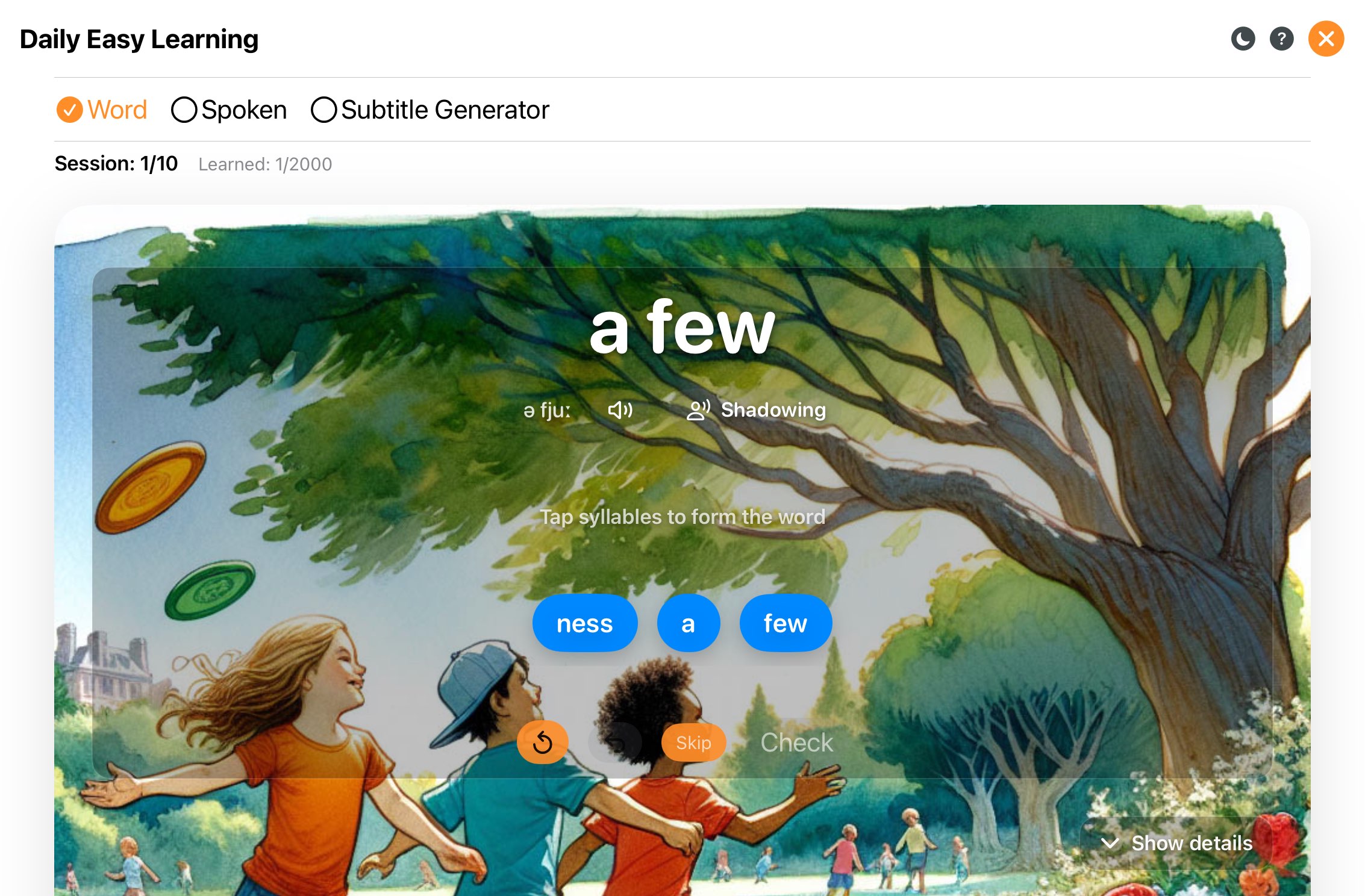
Learn around 2000 English words.
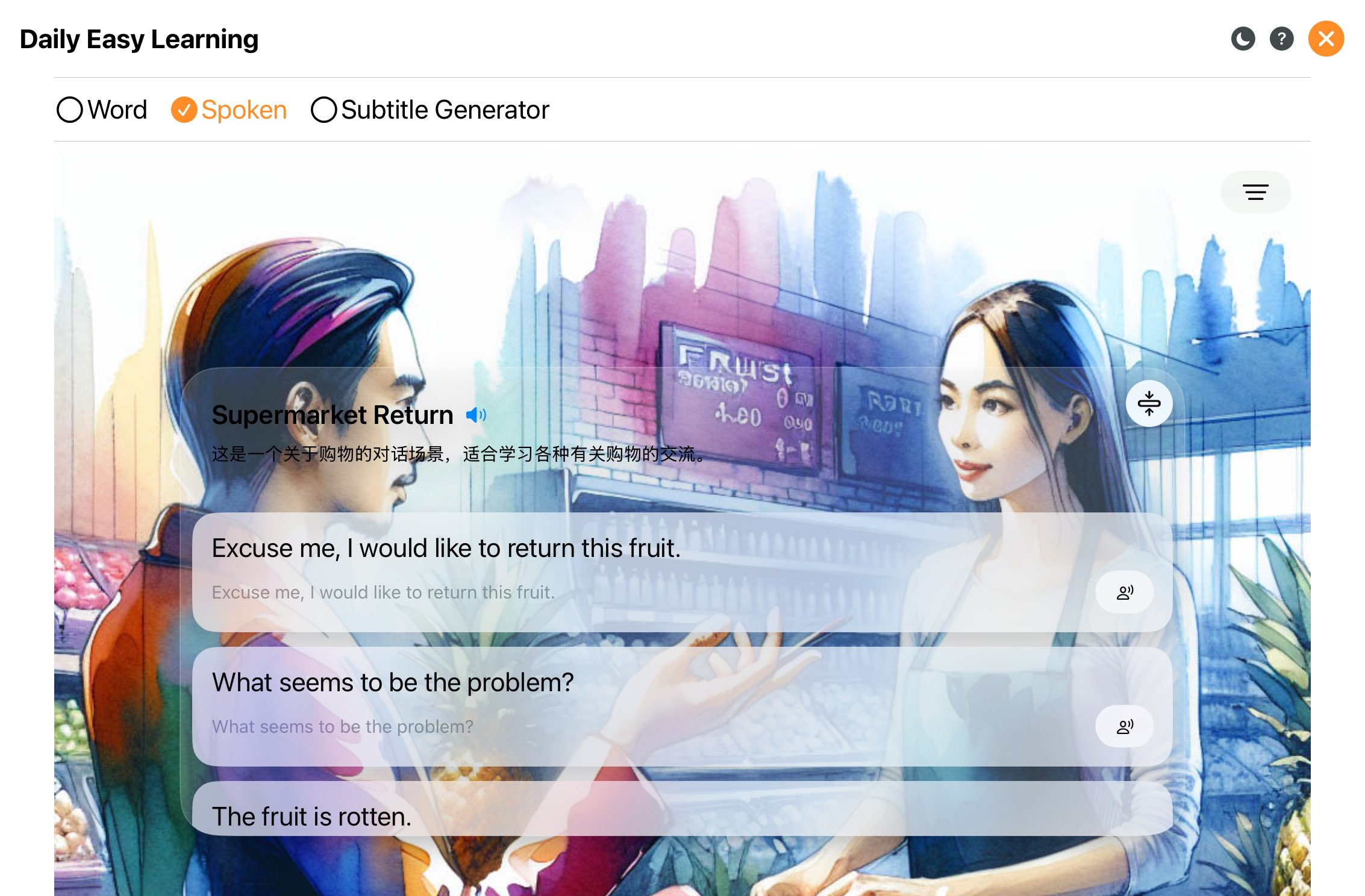
Practice spoken English.
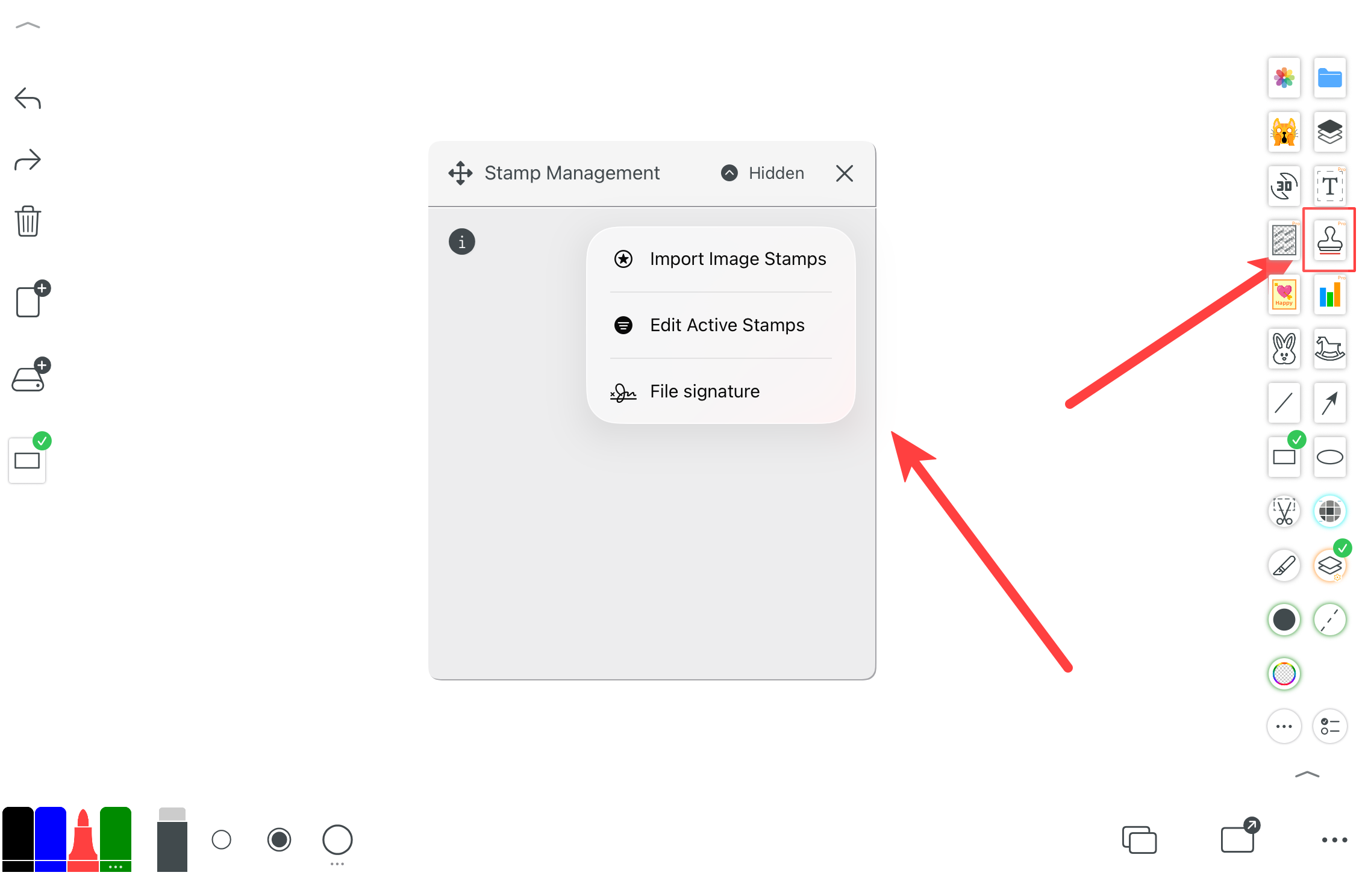
Sign documents and add stamps/annotations.